Zoom Lighting Screen
Loading zoom light…
Key Features
Features of Zoom Lighting Screen
Turn your second display or laptop screen into a broad, soft planar key light for video meetings.
- 01
Expansive Softbox Planar Surface
Utilizes your entire display area as a broad, flattering light emitter to eliminate harsh overhead office shadows.
- 02
Fine-Grain Brightness Calibration
Adjust screen luminance precisely from subtle eye fill to intense key light to match changing room ambient brightness.
- 03
Calibrated Color Temperature Range
Shift between warm tungsten glow for evening warmth and crisp daylight white for vibrant morning video sharpness.
- 04
Hardware Screen WakeLock Active
Ensures the lighting screen never dims or falls asleep mid-meeting while you are presenting to colleagues.
About & Principles
The optical science of planar softbox lighting on webcams
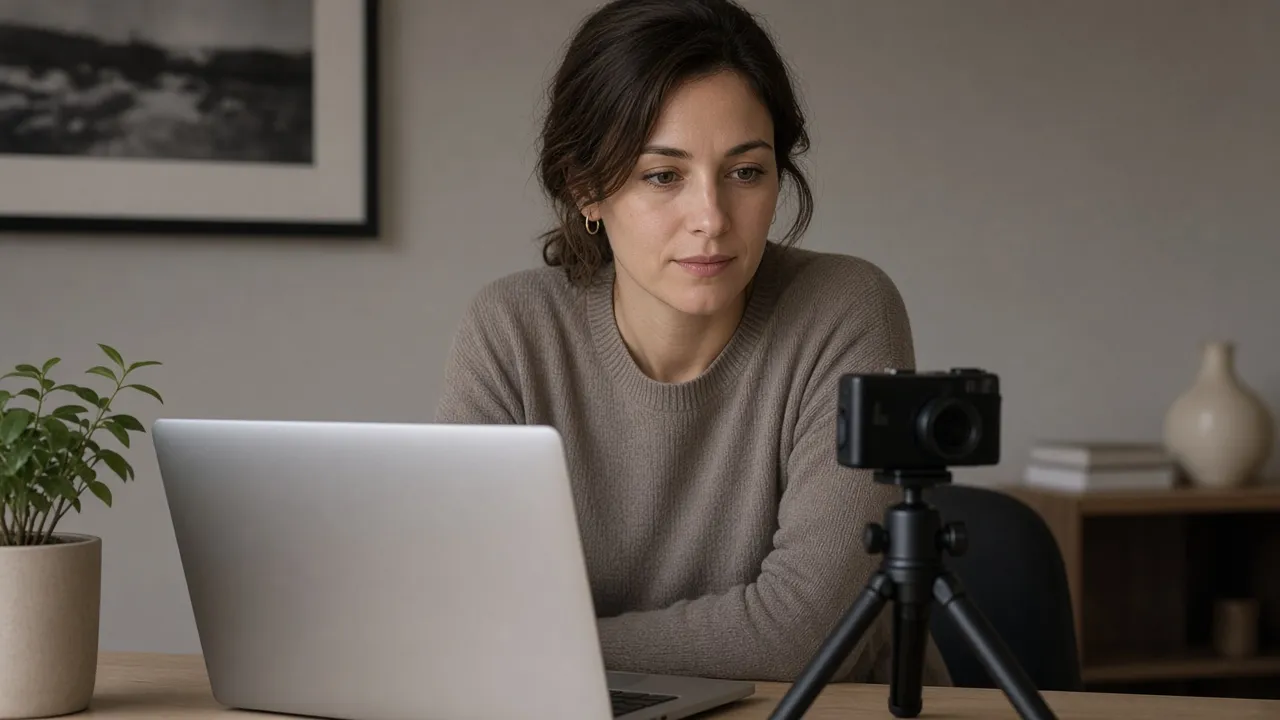
In studio cinematography, light softness is determined by the relative physical size of the light source compared to the subject. Small point sources (like ceiling bulbs or bare desk lamps) cast harsh shadows beneath your nose, brow, and chin, exaggerating skin blemishes and creating unflattering dark eye sockets. A 24-inch to 32-inch computer monitor fills an expansive angular field, behaving identically to a professional photography softbox diffuser.
When your display emits clean, calibrated white light directly toward your face from 50 to 70 centimeters away, it casts diffuse light rays that gently wrap around facial contours. This planar illumination elevates overall ambient exposure, allowing your webcam to automatically lower its electronic sensor gain (ISO). This instantly eliminates noisy digital grain, chromatic sensor artifacts, and motion blur during live video streams.
Our online lighting tool lets you fine-tune display luminance and color temperature from warm incandescent tones (3200K) to crisp daylight (6500K). Combined with full browser WakeLock, it guarantees your screen stays bright and steady throughout entire job interviews, executive board meetings, and client presentations.
How to use it
How to use Zoom Lighting Screen
Three simple steps. No install, no sign-up, no upload.
- 01
Open on Auxiliary Monitor
Position this browser tab on your secondary monitor or front-facing laptop screen right behind your webcam.
- 02
Calibrate Tone & Brightness
Adjust the brightness slider until your face appears naturally illuminated in your webcam preview window.
- 03
Engage Fullscreen Mode
Click anywhere or press F to maximize the clean light area. Press Esc whenever you need to adjust controls.

Why this tool
Why choose Zoom Lighting Screen
Engineered for distraction-free performance, privacy, and zero latency.
- 01
Zero Hardware Purchase Cost
Commercial ring lights and streaming LED key lights cost $50 to $200 and clutter your desk with cables and tripods. Use the high-quality screen you already own.
- 02
Eliminates Eyeglasses Glare
Circular ring lights reflect annoying donut rings directly onto glasses lenses. A broad, high monitor light reflects gently above your line of sight without obscuring your pupils.
- 03
Gentle on Sensitive Eyes
Direct high-intensity LED beads cause rapid eye strain and headaches. A large computer monitor provides diffuse, eye-friendly illumination.
- 04
Dual-Monitor Native Integration
Place your video conference window on your primary monitor while your secondary screen serves as an expansive studio softbox.
Practical Use Cases
What people use Zoom Lighting Screen for
Real-world scenarios with tested setup parameters and operational guidance.
High-Stakes Remote Job Interviews
Project a crisp, professional, and confident video appearance with clean facial lighting that conveys trustworthiness.
SetupLaptop open directly in front of you, 70% brightness, 5500K neutral daylightActionLock webcam exposure in your video settings once lighting is activeNoteAvoid sitting with a bright uncovered window directly behind your back.Late Evening Client Consultations
Maintain a vibrant, alert on-camera appearance during night meetings when natural room daylight has completely disappeared.
SetupAuxiliary 27-inch monitor set to 60% brightness with warm 4500K color toneActionTurn off harsh overhead ceiling lights to let the screen provide primary key lightingNoteMatch the screen color tone to any ambient background lamps in your room.Webinar Hosting & Live Streaming
Provide continuous flattering facial fill for high-definition 1080p and 4K camera sensors on Twitch, YouTube, or Loom.
SetupDual screens angled in a shallow V-shape, 85% brightnessActionPlace the primary webcam right at eye level between the two displaysNoteWipe your screen clean with a microfiber cloth before the call for maximum clarity.Late Night Screen Reading Light
Turn your auxiliary monitor into a gentle warm diffuse reading lamp to illuminate physical paperwork without turning on harsh ceiling lights.
SetupWarm 3200K · 40% BrightnessActionAngle monitor toward desk surface.NoteAvoid direct eye glare by keeping brightness modest.
Pro tips
Tips & limits
Honest notes from real-world use. No fluff.
- Angle Matters
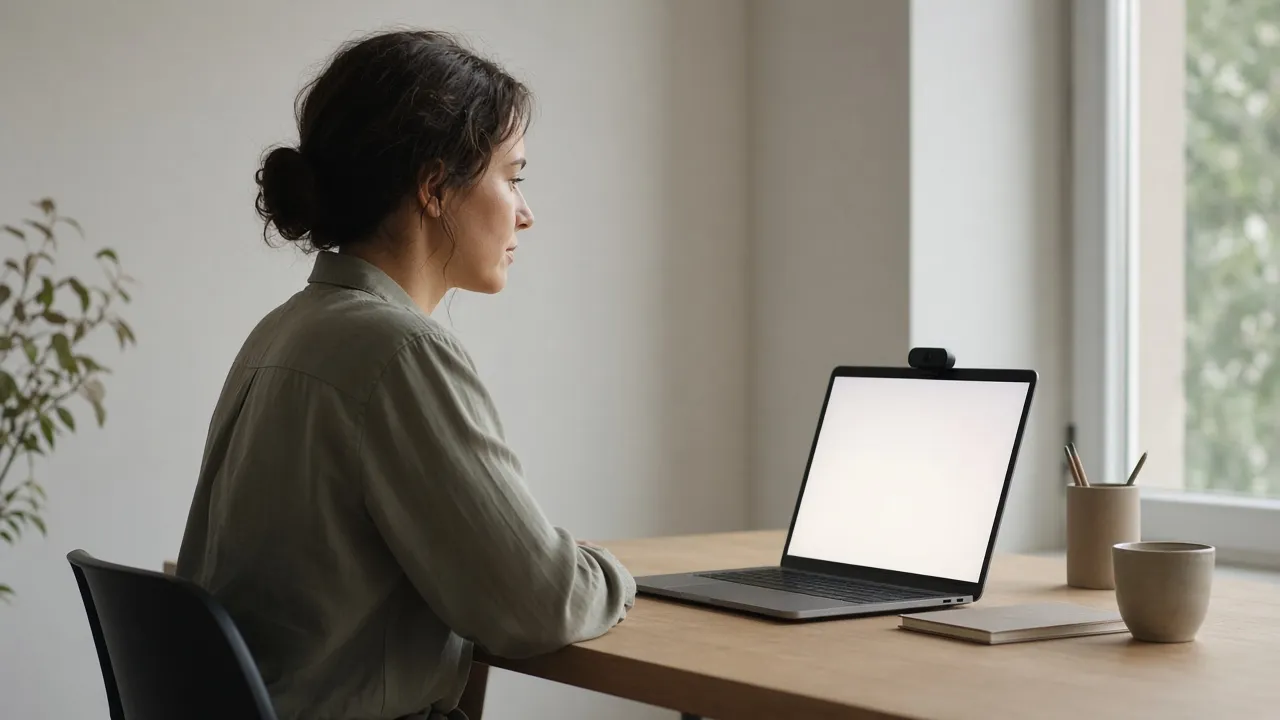
Position your monitor so the top edge is slightly above eye level. Light angling gently downward mimics flattering natural sunlight.
- Eyeglasses Tip
Raise your monitor 5 to 10 cm higher to push the screen reflection above the rim of your glasses frames.
- Webcam Exposure Lock
After turning on Zoom Lighting, turn off Auto-Exposure on your webcam to prevent annoying exposure pulsing.
- Background Separation
Keep a warm accent lamp turned on behind you to separate your shoulders from the background wall.
- Laptop Stand
Put your laptop on a stand or stack of books so the lighting screen shines straight at your face rather than from your chin up.
FAQ
Frequently asked questions
Straight answers about how Zoom Lighting Screen works.
How does using a monitor screen compare to an actual ring light?
A computer monitor is physically larger than most desk ring lights, which means it emits significantly softer, more diffuse light. It casts gentler shadows and does not produce distracting circular reflections in eyeglasses.
Will keeping my screen at full white brightness harm the display?
No. Modern IPS, VA, and OLED monitors are engineered for continuous display. Standard operating white points cause no harm during typical video meeting lengths.
How do I avoid bright screen glare on my eyeglasses?
Angle the monitor slightly higher or tilt the screen back by 10 to 15 degrees. This reflects the screen light upward and away from the webcam lens.
Can I use my laptop screen as a light while looking at my second monitor?
Yes. In dual-monitor setups, placing this tool in fullscreen on your laptop screen while taking your call on your larger desktop monitor creates a flawless studio key light.
What color temperature should I select for video calls?
During daytime, choose 5500K to 6500K (neutral to cool white) to match outdoor window light. In the evening, select 3500K to 4500K (warm white) to harmonize with indoor lamps.
Why does my webcam look grainy even with the screen light on?
Webcams produce digital grain when sensor gain (ISO) is too high. Increase the screen brightness and ensure you are sitting 50 to 70 cm from the display so the sensor receives ample light.
Does this tool work with Zoom, Microsoft Teams, and Google Meet?
Yes. Because this tool runs in your web browser independently of meeting software, it works alongside Zoom, Teams, Meet, Slack, Discord, and Webex.
Will my computer screen go to sleep while I am speaking?
No. Our tool utilizes the browser Screen WakeLock API to keep your display awake and illuminated as long as the page remains open.
Can I use an iPad or tablet as a portable video conference light?
Yes. Open BlackScreen.VIP on your iPad or tablet, maximize brightness, and prop it up directly beside your camera for an ultra-portable lighting kit.
Is this video lighting tool completely free to use?
Yes. It is 100% free with no account signup, no watermark, and no time limits.
Ready when you are
Launch Zoom Lighting Screen
Instant fullscreen mode in your browser — zero install, zero sign-up.
Go fullscreen