Fake Video Call Simulator
Loading video call…
Key Features
Features of Fake Video Call Simulator
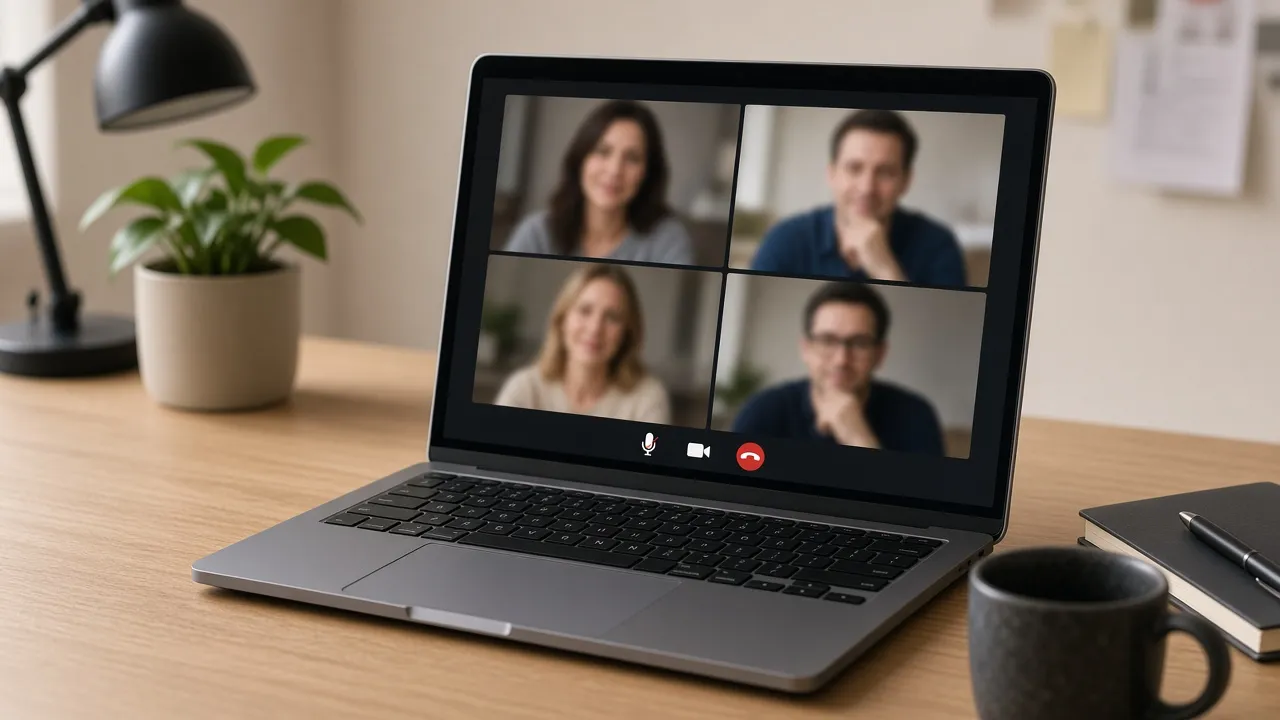
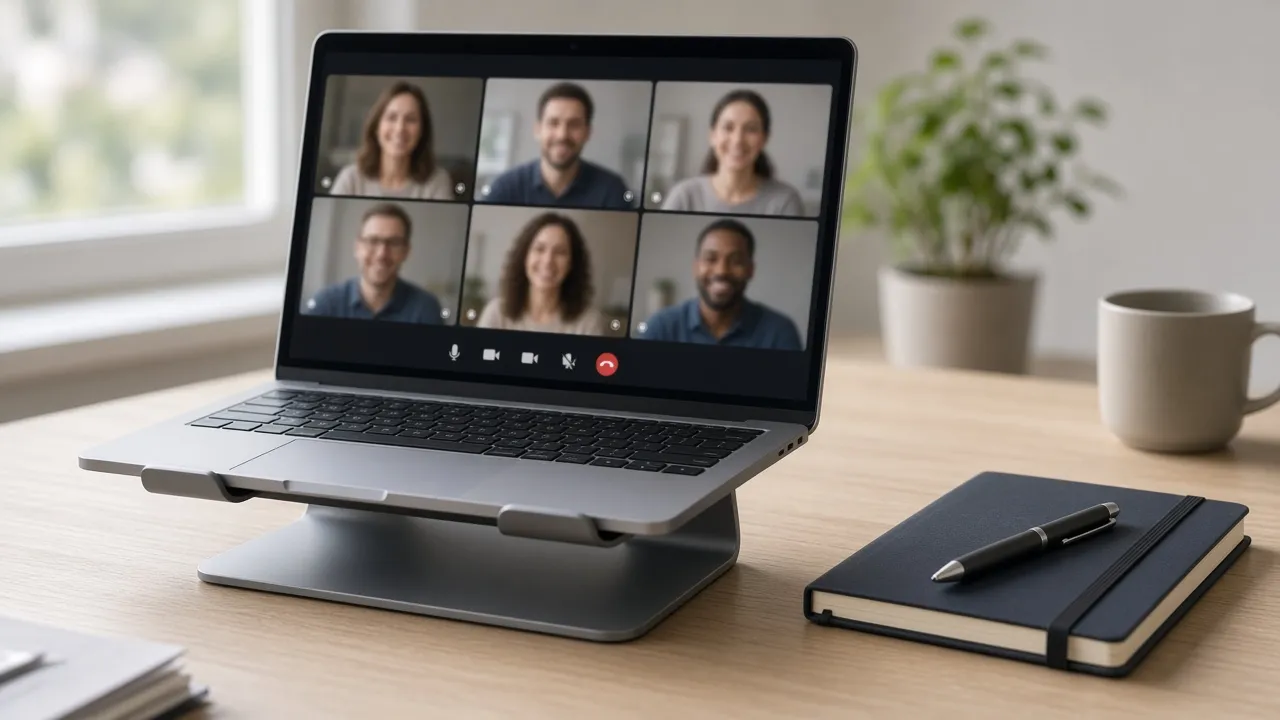
Realistic video conference grid with active speaker frames and mute icons.
- 01
Authentic Multi-Participant Video Grid
Displays realistic 2x2, 3x3, or spotlight speaker video conference layouts complete with name badges and video feeds.
- 02
Dynamic Active Speaker Highlights
Simulates active speaker switching with glowing green/blue borders and pulsating microphone volume meters.
- 03
Standard Conference Control Toolbar
Includes realistic icons for Mute, Stop Video, Share Screen, Participants (7), Chat, and Leave Call.
- 04
One-Click Fullscreen Cloak
Press F to hide all browser chrome, creating an edge-to-edge conference meeting that looks genuinely active.
- 05
100% In-Browser & Private
Requires zero camera permissions, zero microphone access, and zero software downloads. Safe and client-side.
About & Principles
The Modern Workplace Need for Visual Unavailability
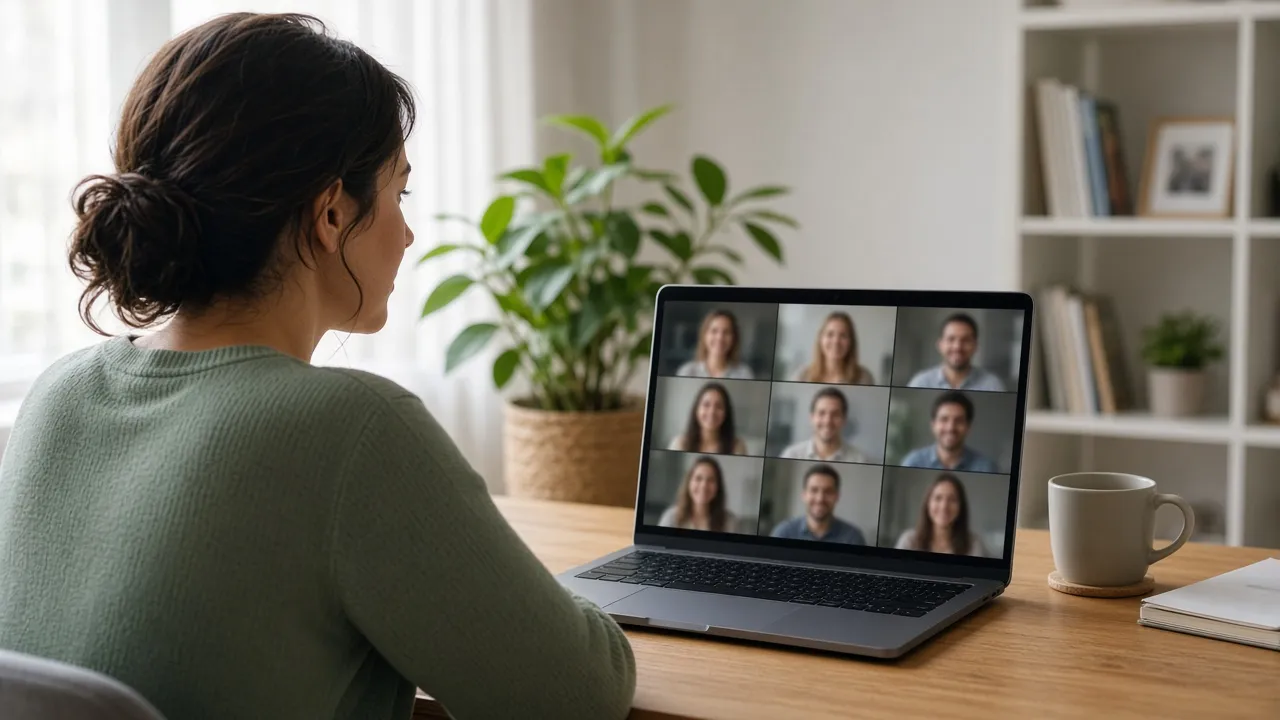
In open-plan offices and shared co-working spaces, employees face constant casual interruptions. Putting on headphones is often not enough to deter colleagues from tapping your shoulder. However, the universal visual signal that demands absolute silence is an active video conference call with visible participant webcam tiles.
Our online fake video call simulator recreates a convincing multi-party video meeting directly in your browser window. Featuring high-definition participant video placeholders, dynamic audio volume meters, and realistic mute indicators, it establishes an airtight visual boundary around your workspace.
Whether you need uninterrupted deep work time to write code, prepare a report, or simply finish your lunch in peace, this tool signals to everyone around you that you are engaged in an important conference.
How to use it
How to use Fake Video Call Simulator
Three simple steps. No install, no sign-up, no upload.
- 01
Open the fake video call tool
Launch the simulator in any web browser on your computer.
- 02
Press F for fullscreen
Tap F or click the preview to enter borderless full screen.
- 03
Put on your headphones
Pop in your earbuds and look at your screen; colleagues will assume you are in a crucial call.
- 04
Press Esc to exit
Hit Esc whenever you are ready to conclude your simulated meeting.
Why this tool
Why choose Fake Video Call Simulator
Engineered for distraction-free performance, privacy, and zero latency.
- 01
Universal Workplace Shield
The most socially respected visual signal in modern office culture to stop casual interruptions dead in their tracks.
- 02
Zero Camera or Mic Permissions
Unlike real meeting apps, this tool never requests camera or microphone access, ensuring absolute privacy.
- 03
Screen Wake Lock Built In
Keeps your monitor illuminated continuously without going dark while you focus on offline tasks.
- 04
Works Across All Platforms
Runs smoothly in Chrome, Safari, Edge, and Firefox on Windows, Mac, Linux, and tablets.
Practical Use Cases
What people use Fake Video Call Simulator for
Real-world scenarios with tested setup parameters and operational guidance.
Open Office Deep Work Protection
Shield yourself from casual desk drop-ins when you need 90 minutes of uninterrupted coding or strategic writing.
SetupFullscreen · Headphones On · Mute ActiveActionLaunch full screen on secondary or laptop monitor.NoteEnsure your calendar does not contradict an urgent company all-hands.Film & Web Series Production Prop
Film convincing over-the-shoulder video meeting scenes for corporate sketches and indie films without licensing commercial apps.
Setup1080p / 4K Monitor · Clean Studio LightingActionCapture actors interacting with the simulated call.NoteMatch room acoustic ambience to video theme.Peaceful Lunch & Break Barrier
Eat your lunch at your desk or watch a tutorial video while appearing to be listening in on a mandatory webinar.
SetupFullscreen · Auto-Awake EnabledActionKeep call active while eating or relaxing.NoteMute your real computer audio so background media does not blast.UX Design & Wireframe Presentations
Demonstrate remote communication workflows and teleconferencing UI concepts during software design seminars.
SetupClassroom Projector FullscreenActionWalk through video tile spacing and toolbar accessibility.NoteClarify that this is an interactive design mockup.
Pro tips
Tips & limits
Honest notes from real-world use. No fluff.
- Note
Wearing headphones while this screen is active creates an impenetrable barrier against office drop-ins.
- Note
Press F to enter fullscreen mode and hide your browser tabs and bookmark bar.
- Note
The simulated active speaker border pulses occasionally, creating the illusion of a live ongoing conversation.
- Note
Press Esc or tap the screen at any point to restore your normal desktop in less than one second.
FAQ
Frequently asked questions
Straight answers about how Fake Video Call Simulator works.
Does this fake video call access my webcam or microphone?
No. This simulator does not request, access, or record your physical camera or microphone in any way. It runs entirely on client-side visual assets.
How do I exit the fake video call screen?
Press the Esc key on your keyboard or tap the top edge of your touchscreen device to immediately exit fullscreen.
Can I display this on a second monitor while working on my primary screen?
Yes! You can easily drag this browser window to a secondary monitor or laptop screen and enter fullscreen to look occupied while working on another display.
Does the video call have sound?
By default, the call runs silently so it does not distract you from your real work or broadcast unwanted audio across the room.
Will my monitor go to sleep while this tool is running?
No. With Keep screen awake enabled, the Screen Wake Lock API prevents your monitor from turning off or dimming.
Is this simulator completely free?
Yes, 100% free with no account creation, no downloads, and no watermarks in fullscreen mode.
Can I change the participant layout?
The simulator features an authentic grid layout designed to look like a standard corporate video call.
Does this page require Zoom, Teams, or Google Meet to be installed?
No. It is an independent web application that runs directly in your standard browser without needing any third-party meeting software.
Does it work offline without Wi-Fi?
Yes, once loaded, the page assets run locally in your browser cache without requiring an active internet connection.
Can I use this in commercial video productions and live streams?
Yes, content creators and filmmakers are welcome to use this simulator as a royalty-free digital prop.
Ready when you are
Launch Fake Video Call Simulator
Instant fullscreen mode in your browser — zero install, zero sign-up.
Go fullscreen