Fake Windows 10 Update Screen
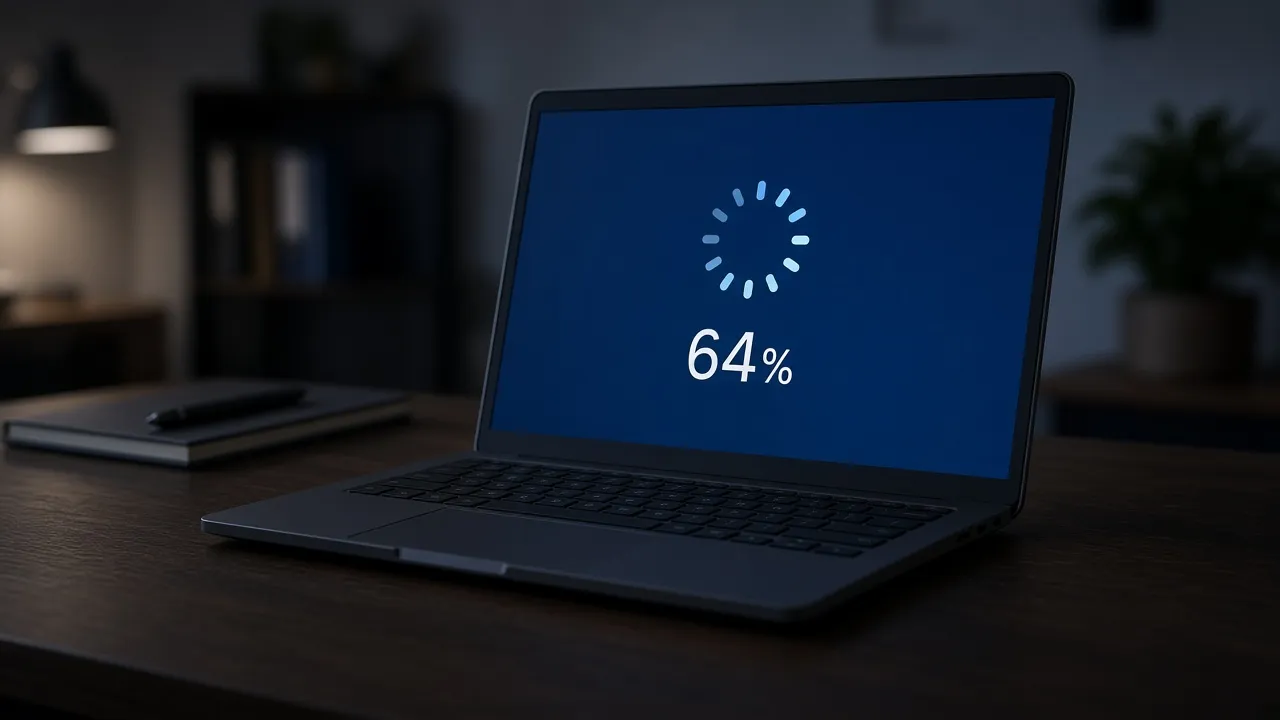
Loading windows 10 update…
Key Features
Features of Fake Windows 10 Update Screen
Realistic Windows 10 Working on updates animation with live counter.
- 01
Pixel-Perfect Windows 10 Typography
Rendered with authentic Segoe UI font weights, line heights, and exact Microsoft system update phraseology.
- 02
Smooth 60 FPS Orbiting Spinner
Features the genuine circular five-dot acceleration/deceleration physics animation used by the Windows 10 OS installer.
- 03
Slow Realistic Percentage Increments
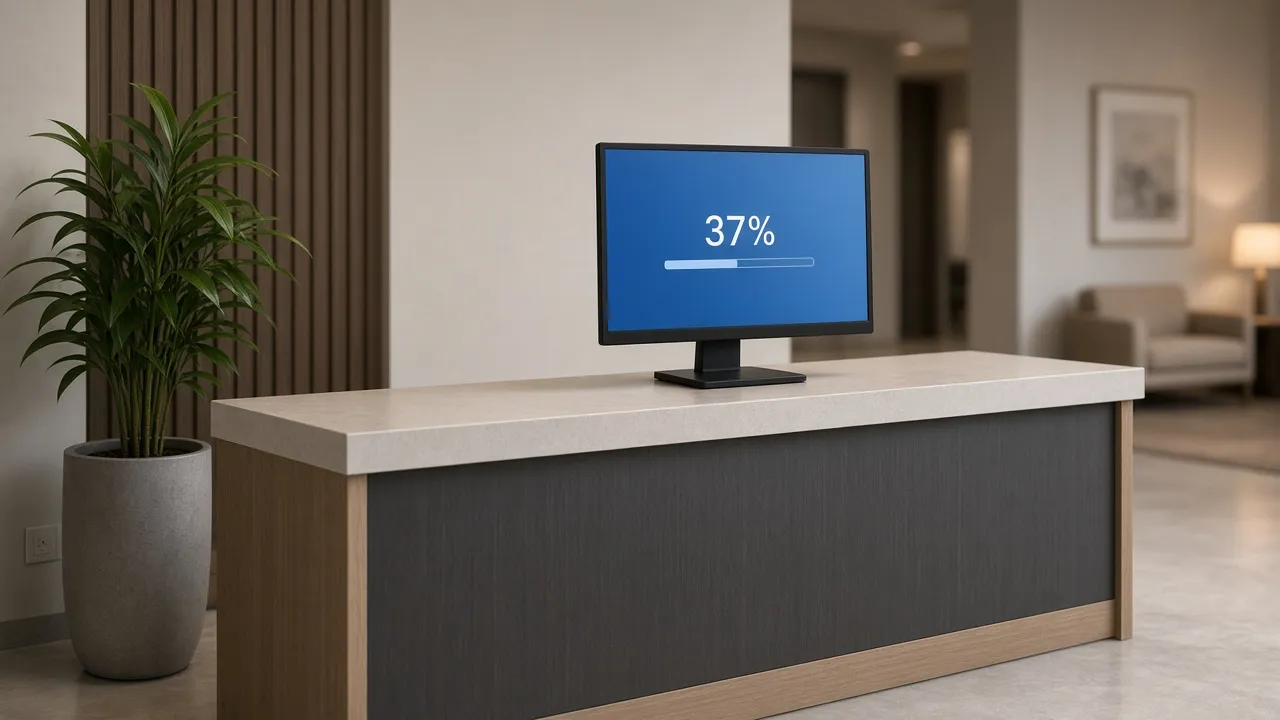
Progress counter advances in realistic intervals, holding at plausible bottlenecks (such as 27%, 42%, and 78%) to maintain authenticity.
- 04
One-Click Borderless Fullscreen
Press F to conceal browser tabs, URL bars, and desktop taskbars for complete edge-to-edge immersion.
- 05
Completely Harmless & Safe
Executes strictly in your browser tab. No real software updates take place, and pressing Esc restores your desktop instantly.
About & Principles
Why the Windows 10 Update Screen is the Ultimate Office Cloak
Few digital experiences in corporate life evoke universal empathy and resignation like the unexpected Windows 10 update screen. Bearing the message "Working on updates 100% complete. Don't turn off your PC", it represents an impenetrable barrier where no boss, colleague, or client can demand immediate workstation productivity.
Our online simulation reproduces this interface with obsessive fidelity. Built using authentic Microsoft Segoe UI font metrics and pure CSS animations, it displays the iconic five-dot orbiting spinner on a deep #0078D7 blue canvas.
The progress counter advances at a realistic, agonizingly sluggish cadence, ensuring that anyone glancing at your monitor genuinely believes your computer is undergoing a multi-gigabyte feature update.
How to use it
How to use Fake Windows 10 Update Screen
Three simple steps. No install, no sign-up, no upload.
- 01
Open the Windows 10 update tool
Navigate to the tool on your desktop or laptop monitor.
- 02
Press F for fullscreen
Hit F or click the preview to enter borderless full screen mode.
- 03
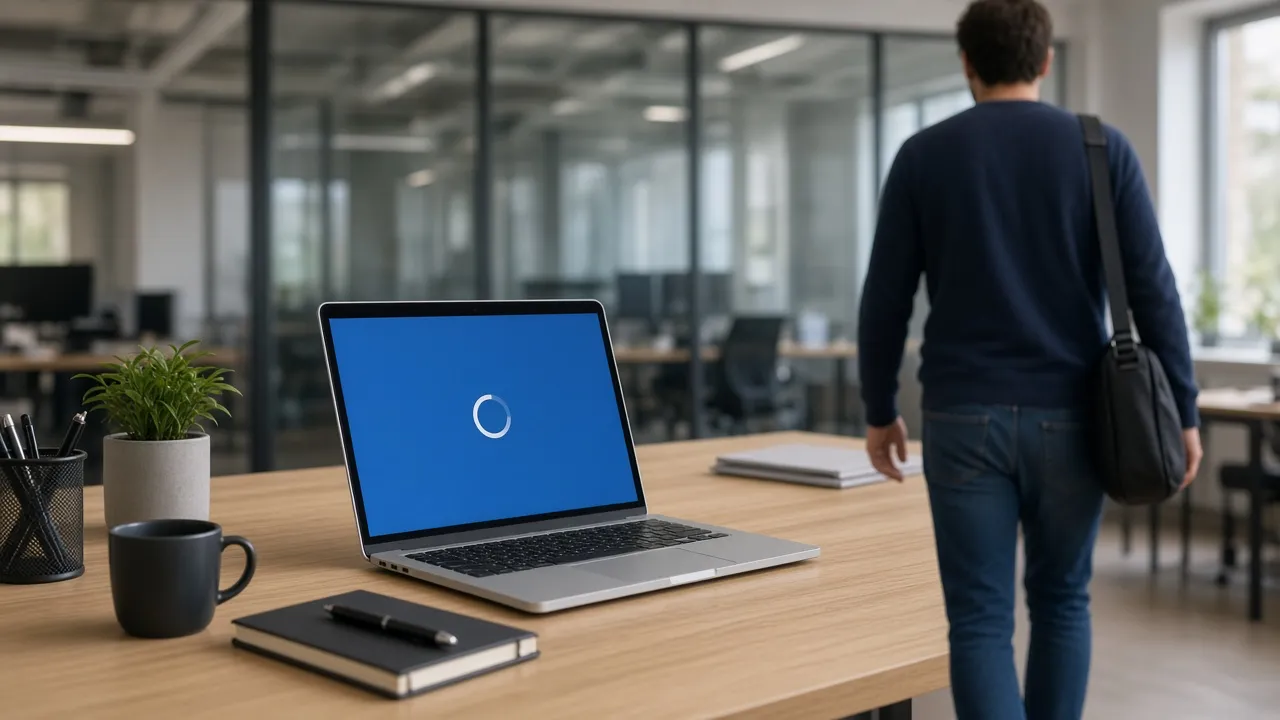
Leave workstation unattended
Step away for lunch or coffee while your monitor displays an untouchable update in progress.
- 04
Press Esc to resume work
Tap Esc when you return to immediately dismiss the update and access your desktop.
Why this tool
Why choose Fake Windows 10 Update Screen
Engineered for distraction-free performance, privacy, and zero latency.
- 01
Airtight Visual Authenticity
Every color code (#0078D7), spinner timing, and font size matches genuine Microsoft Windows 10 cumulative updates.
- 02
Prevents Screen Sleep
Screen Wake Lock integration ensures your display remains illuminated without dropping into energy-saving blackouts.
- 03
Zero Software Installation
Runs instantly in modern web browsers without downloading suspicious exe files or browser extensions.
- 04
Works on Mac & Chromebooks
Hilarious to trigger full-screen on Apple MacBooks and Chromebooks to baffle technical support staff.
Practical Use Cases
What people use Fake Windows 10 Update Screen for
Real-world scenarios with tested setup parameters and operational guidance.
Taking an Undisturbed Lunch or Coffee Break
Leave your screen looking legitimately tied up in a mandatory OS update so coworkers do not interrupt your break.
SetupFullscreen · Auto-Awake On · Default BlueActionLaunch full screen before leaving your chair.NoteDo not use during mission-critical corporate deadlines.Office Coworker Lighthearted Prank
Switch a colleague’s secondary monitor to the update screen when they step away to give them a brief, harmless startle.
SetupFullscreen · Esc key readyActionPress F on their unlocked browser window.NoteDismiss immediately if they attempt to physically pull the power plug.Filming & TV Production Prop
Provide an authentic backdrop for office sitcom scenes or film sketches requiring an employee to be stalled by technology.
Setup1080p / 4K Monitor · 60 FPS OrbitActionCapture over-the-shoulder video footage.NoteAdjust screen brightness to match camera lighting levels.IT Helpdesk Diagnostic Demonstration
Demonstrate Windows update UX behavior during training seminars for enterprise support personnel.
SetupProjector Fullscreen DisplayActionExplain typical customer support inquiries during OS updates.NoteClarify that this is an online educational mock.
Pro tips
Tips & limits
Honest notes from real-world use. No fluff.
- Note
Press F to enter fullscreen seamlessly without mouse clicks revealing the simulation.
- Note
Hide your mouse cursor by moving it off the right edge of the screen before leaving your desk.
- Note
The percentage counter will slowly rise, making the screen appear active even upon close inspection.
- Note
Press Esc or tap the top edge of your display at any time to instantly return to your real workflow.
FAQ
Frequently asked questions
Straight answers about how Fake Windows 10 Update Screen works.
Will this tool install any real updates or restart my computer?
No. This is purely a visual simulation running inside your web browser. It does not download patches, restart your system, or alter any files.
How do I exit the fake Windows 10 update screen?
Simply press the Esc key on your keyboard or tap the top edge of your touchscreen device to immediately exit fullscreen.
Does the percentage actually go up over time?
Yes! The percentage indicator climbs slowly and pauses realistically at common bottleneck numbers to make the update look completely genuine.
Can I display this on a MacBook or Mac desktop?
Yes, it works in any browser including Safari and Chrome on macOS, creating a hilarious sight of Windows 10 updating on an Apple MacBook.
Will my computer go to sleep while the fake update is running?
No. The built-in Screen Wake Lock feature keeps your display active and illuminated for as long as the page is open.
Is this simulator completely free to use?
Yes, 100% free with no registration, no advertisements during fullscreen, and no downloads required.
Can I run this on multiple monitors at the same time?
Yes, open the settings panel and click "Open in another window" to launch duplicate update screens across secondary displays.
What color is the Windows 10 update background?
The background is Microsoft Azure Blue (#0078D7), the canonical color of modern Windows system maintenance interfaces.
Does this tool work without an active internet connection?
Once loaded into your browser cache, the update screen can run completely offline without needing continuous internet access.
Can I speed up the percentage counter?
The percentage cadence is calibrated automatically to balance believability with dynamic visual progression.
Ready when you are
Launch Fake Windows 10 Update Screen
Instant fullscreen mode in your browser — zero install, zero sign-up.
Go fullscreen