Fake Windows 11 Update Screen
Loading windows 11 update…
Key Features
Features of Fake Windows 11 Update Screen
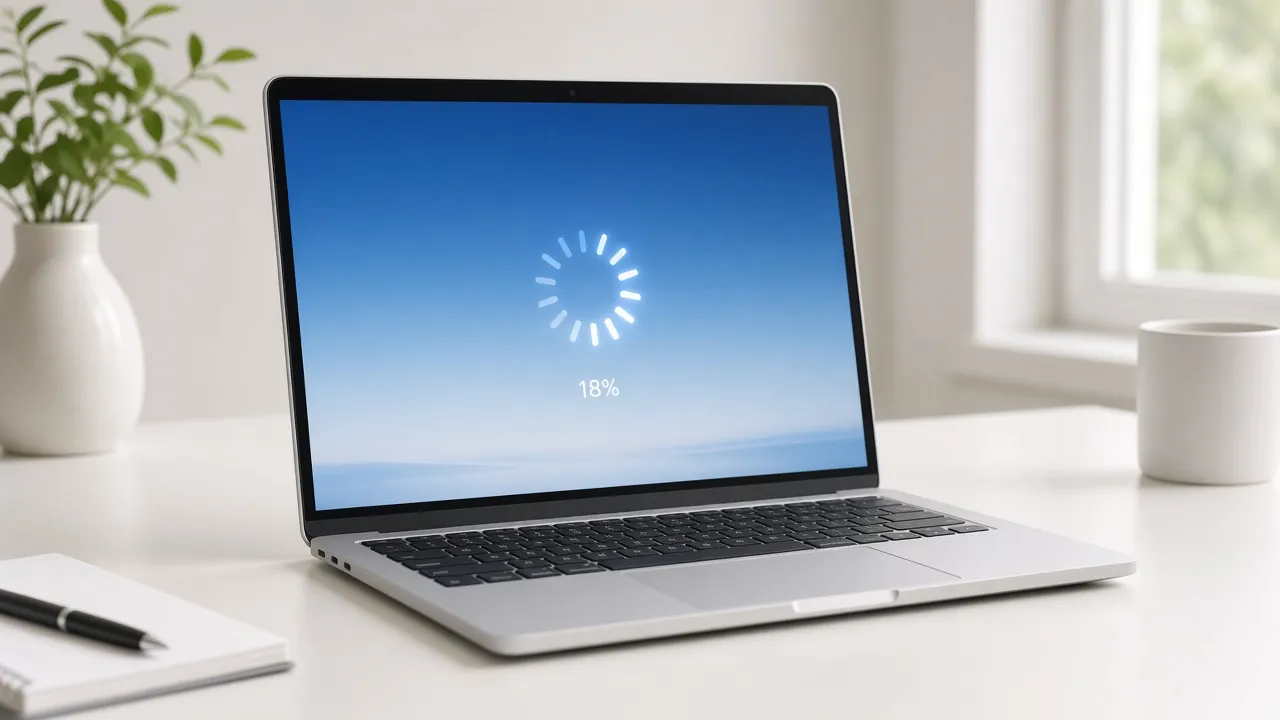
Modern Windows 11 Working on updates with glowing radial spinner.
- 01
Authentic Windows 11 Dark Aesthetic
Accurate pitch-dark background and subtle glowing progress indicator matching current Windows 11 23H2/24H2 builds.
- 02
Refined Segoe UI Variable Typography
Features Microsoft’s newest variable font weights and center-aligned layout for modern PC authenticity.
- 03
Fluid 60 FPS Ring Animation
Recreates the exact orbital physics and glowing tip tail of the official Windows 11 boot and update spinner.
- 04
Realistic Progress Percentage
Simulates slow, realistic percentage increments that climb naturally over time to prevent detection.
- 05
Zero Risk Instant Exit
Hit Esc at any moment to return immediately to your active windows without rebooting or closing applications.
About & Principles
The Modern Minimalist Aesthetic of Windows 11 Updates
With Windows 11, Microsoft replaced the bold blue screen of previous generations with an understated, elegant dark slate canvas (#000000 / #0B0B0B) and a refined circular loading spinner. The updated interface reads: "Working on updates. Please keep your computer on. Your computer may restart a few times."
This updated visual language is designed to feel less jarring on high-contrast OLED and Mini-LED displays. However, its psychological effect in the workplace remains identical: total immunity from immediate demands for work output.
Our online simulator delivers a 1:1 reproduction of this exact Windows 11 experience. High-definition vector rendering guarantees razor-sharp typography on 4K monitors, while the smooth 60 FPS animation provides absolute believability.
How to use it
How to use Fake Windows 11 Update Screen
Three simple steps. No install, no sign-up, no upload.
- 01
Open the Windows 11 update simulator
Launch the page in any browser on your computer.
- 02
Press F for true fullscreen
Tap F to hide all browser chrome and taskbars.
- 03
Observe the modern update loop
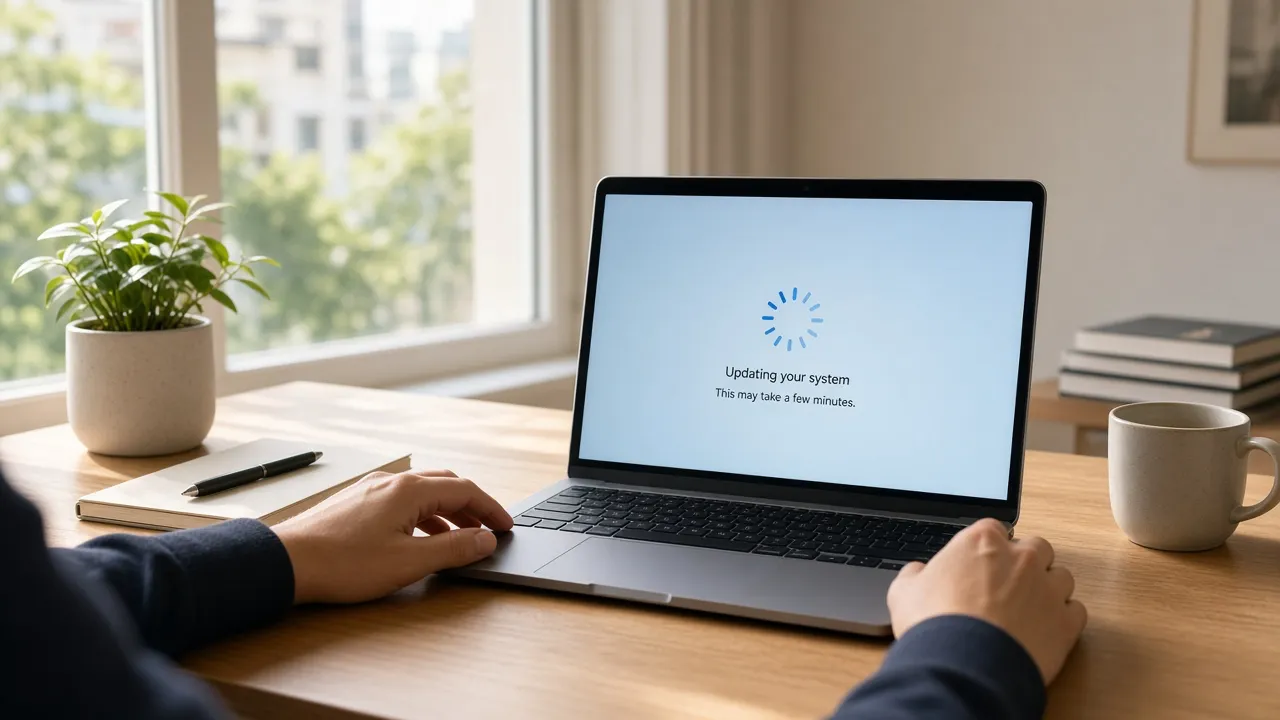
Enjoy a peaceful break while passersby assume your computer is updating.
- 04
Press Esc to exit
Tap Esc when ready to resume working immediately.
Why this tool
Why choose Fake Windows 11 Update Screen
Engineered for distraction-free performance, privacy, and zero latency.
- 01
Up-to-Date Modern Realism
Perfect for newer office laptops and desktops where an older Windows 10 blue screen would look outdated.
- 02
Optimized for OLED & Dark Rooms
Deep black background looks breathtaking on OLED and high-contrast screens without bright backlight bleed.
- 03
Screen Wake Lock Built In
Prevents display sleep so your fake update remains visibly spinning for hours.
- 04
Completely Private & Safe
Zero installation, no permissions required, and no telemetry data sent to third parties.
Practical Use Cases
What people use Fake Windows 11 Update Screen for
Real-world scenarios with tested setup parameters and operational guidance.
Workplace Break & Focus Shield
Shield your desk from urgent drop-in requests while you step out for coffee or focus on offline paperwork.
SetupFullscreen · Auto-Awake On · Modern PCActionPress F and leave your modern laptop open.NoteKeep brief to avoid causing real IT concern.Film & Tech Review Production
Shoot authentic b-roll of a modern laptop updating for software reviews, tech tutorials, and workplace sketches.
Setup4K Display · Clean Studio LightingActionRecord crisp close-ups of the rotating spinner.NotePrevent camera moiré by matching display refresh rate.Modern Office Harmless Prank
Give a coworker with a brand-new Windows 11 laptop the illusion that their machine decided to update right before a meeting.
SetupFullscreen · Quick Esc hotkeyActionLaunch full screen on their unattended device.NoteQuickly reveal the joke before they stress about their meeting.Display Testing for Dark Uniformity
Use the deep black background and subtle glowing center to test monitor IPS glow and blooming in dark rooms.
SetupDark Room · FullscreenActionInspect screen corners for backlight bleed.NoteRemember this is a functional graphic tool.
Pro tips
Tips & limits
Honest notes from real-world use. No fluff.
- Note
Windows 11 uses a pure black background (#000000), making it look seamless on bezels with dark frames.
- Note
Press F to enter fullscreen instantly without clicking visible buttons.
- Note
Hide your cursor by moving it off-screen to the right side.
- Note
Press Esc to restore your working desktop in less than one second.
FAQ
Frequently asked questions
Straight answers about how Fake Windows 11 Update Screen works.
Does this Windows 11 update screen reboot my PC?
No. This is an entirely digital web simulation running inside your browser. It does not reboot your PC or modify any operating system files.
How do I exit the fullscreen update screen?
Press the Esc key on your keyboard or tap the top edge of your screen on a touchscreen device to exit immediately.
Why does Windows 11 have a black background instead of blue?
Microsoft updated the design language in Windows 11 to a minimalist dark theme to reduce eye strain and look sleek on modern OLED displays.
Does the percentage really change?
Yes, the percentage slowly advances in realistic increments, mimicking real operating system package extraction and installation.
Can I display this on a Mac or iPad?
Yes, it runs seamlessly in any modern web browser, allowing you to show a Windows 11 update on an Apple device.
Will my screen turn off automatically?
No. With Keep screen awake enabled, our tool uses the Screen Wake Lock API to keep the monitor active continuously.
Is this simulator free to use?
Yes, 100% free with no account creation, no downloads, and no watermarks.
Can I use this in videos and live streams?
Yes, content creators are welcome to use this simulator in YouTube videos, Twitch streams, and commercial productions.
Does it work offline?
Yes. Once loaded in your browser, the page cache allows it to run smoothly even without an active internet connection.
Can I open it on multiple monitors?
Yes, use the "Open in another window" feature in the settings panel to mirror or extend update screens across all connected monitors.
Ready when you are
Launch Fake Windows 11 Update Screen
Instant fullscreen mode in your browser — zero install, zero sign-up.
Go fullscreen