Fake Zoom Call Simulator
Loading zoom call…
Key Features
Features of Fake Zoom Call Simulator
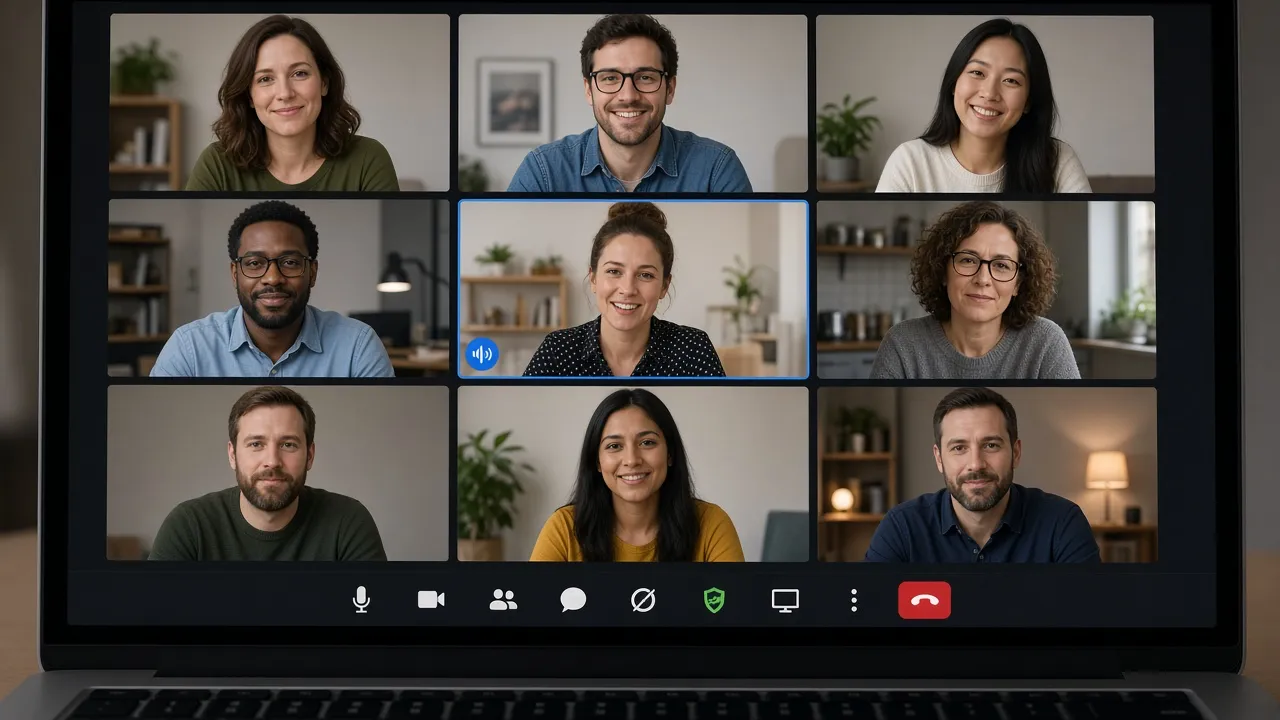
Realistic Zoom Cloud Meetings gallery interface with active speaker borders.
- 01
Authentic Zoom Interface Aesthetics
Features Zoom’s classic dark theme (#1A1A1A), bottom icon dock, and signature green Share Screen button.
- 02
Dynamic Participant Gallery Grid
Displays authentic webcam-style participant boxes with realistic name labels and microphone status indicators.
- 03
Active Speaker Border Simulation
Simulates live audio conversation by occasionally cycling glowing cyan speaker highlights across tiles.
- 04
Zero Camera or Mic Requirements
Operates safely in browser memory without ever prompting for hardware webcam or microphone permissions.
- 05
One-Click True Fullscreen Mode
Press F to hide all browser chrome, transforming your screen into a dedicated Zoom meeting desktop app.
About & Principles
The Power of the Zoom UI in the Remote & Hybrid Era
Zoom Cloud Meetings revolutionized corporate remote work and remains the most recognizable video conferencing platform on earth. Its trademark design—dark charcoal grey canvas (#1A1A1A), bottom floating control dock with the prominent green "Share Screen" button, and participant video tiles with cyan active-speaker boxes—is instinctively respected everywhere.
When coworkers or housemates see a Zoom meeting active on your screen, they instinctively speak in hushed tones, step away, and avoid disturbing you. It is the ultimate digital "Do Not Disturb" sign.
Our online fake Zoom call simulator provides an exact replica of this interface. Operating without camera permissions or software installations, it delivers an instant, airtight illusion of a high-stakes client conference.
How to use it
How to use Fake Zoom Call Simulator
Three simple steps. No install, no sign-up, no upload.
- 01
Open the fake Zoom tool
Launch the simulator in any web browser on your PC or Mac.
- 02
Press F for fullscreen
Tap F or click the preview to enter borderless full screen.
- 03
Wear your headset
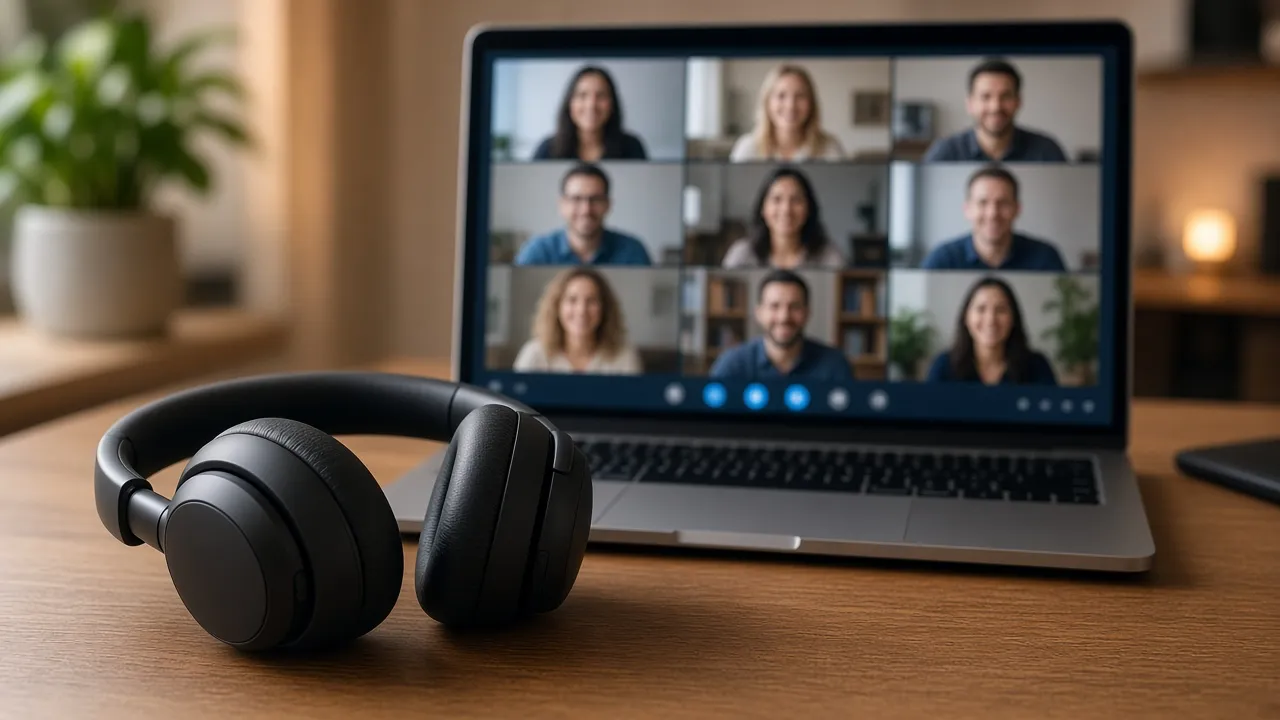
Put on your headset and focus on your work; everyone will assume you are in a Zoom conference.
- 04
Press Esc to exit
Hit Esc whenever you are ready to conclude your simulated meeting.
Why this tool
Why choose Fake Zoom Call Simulator
Engineered for distraction-free performance, privacy, and zero latency.
- 01
Instant Universal Recognition
Everyone knows Zoom. Seeing the familiar bottom toolbar ensures immediate respect for your quiet time.
- 02
Complete Privacy & Security
No real video streams, no network data transfer, and no security permissions needed.
- 03
Screen Wake Lock Built In
Prevents display sleep so your mock Zoom call remains active on your secondary monitor for hours.
- 04
Zero Software Installation
Runs instantly in modern web browsers without downloading heavy desktop clients or mobile apps.
Practical Use Cases
What people use Fake Zoom Call Simulator for
Real-world scenarios with tested setup parameters and operational guidance.
Workplace Focus & Do-Not-Disturb Cloak
Deter walk-in interruptions in open offices and shared spaces when you need uninterrupted focus time.
SetupFullscreen · Secondary Monitor · Headset OnActionLaunch full screen before diving into deep tasks.NoteEnsure team members know you are reachable by Slack if critical.Film & Comedy Video Sketches
Provide actors with a realistic Zoom call interface for remote work comedy sketches and indie film scenes.
Setup1080p / 4K Monitor · Studio LightingActionRecord actors interacting with the Zoom gallery.NoteKeep ambient room reflections off the monitor.Polite Exit from Impromptu Hangouts
Need to politely step away from roommates or social situations? A scheduled Zoom call provides an unimpeachable exit.
SetupLaptop on Table · Active Speaker GlowingActionExcuse yourself to attend an urgent meeting.NoteUse tactfully for polite boundary setting.Remote Collaboration Training Demos
Demonstrate video conference etiquette, screen sharing concepts, and gallery navigation in training seminars.
SetupClassroom Projector FullscreenActionWalk through Zoom toolbar features and meeting management.NoteClarify that this is an educational web mockup.

Pro tips
Tips & limits
Honest notes from real-world use. No fluff.
- Note
Put on a headset or earbuds while this screen is active to make the illusion 100% convincing.
- Note
Press F to enter fullscreen mode and hide all browser tabs and operating system taskbars.
- Note
The glowing speaker box moves realistically, convincing anyone glancing at your screen that someone is talking.
- Note
Press Esc or tap the screen at any point to restore your normal desktop in less than one second.
FAQ
Frequently asked questions
Straight answers about how Fake Zoom Call Simulator works.
Does this fake Zoom call connect to the real Zoom service?
No. This is purely an in-browser visual mockup. It does not connect to Zoom servers, require an account, or transmit any audio or video data.
How do I exit fullscreen mode?
Press the Esc key on your keyboard or tap the top edge of your touchscreen device to immediately exit fullscreen.
Does this tool request access to my webcam or microphone?
No. The simulator never requests camera or microphone permissions. It runs entirely on client-side vector and CSS visual assets.
Can I run this on a second monitor while working on my laptop screen?
Yes! Move the browser window to your external monitor and press F for fullscreen to look occupied while continuing your real work on your main screen.
Will my monitor go to sleep while the fake Zoom call is open?
No. With Keep screen awake enabled, the Screen Wake Lock API prevents your display from dimming or falling asleep.
Is this simulator completely free to use?
Yes, 100% free with no registration, no app downloads, and no watermarks in fullscreen mode.
Does the fake call include audio or speaking sounds?
The call runs silently by default so it never disrupts your office environment or interferes with your actual audio playback.
Can I display this on a MacBook or iPad?
Yes! It runs in any web browser across macOS, iPadOS, iOS, Windows, Android, and Linux.
Does this page work offline?
Yes, once loaded, all assets are cached in your browser, allowing the simulation to run without an active internet connection.
Can I use this for video production and streaming?
Yes, filmmakers and content creators are welcome to use this simulator as a royalty-free digital prop.
Ready when you are
Launch Fake Zoom Call Simulator
Instant fullscreen mode in your browser — zero install, zero sign-up.
Go fullscreen