Fake ChromeOS Update Screen
Loading chromeos update…
Key Features
Features of Fake ChromeOS Update Screen
Authentic Google ChromeOS updating your device and verification screen.
- 01
Authentic Google Material Design UI
Clean white/light-grey background, official Roboto font weights, and genuine Google ChromeOS system update messaging.
- 02
Smooth Multi-Color Chrome Spinner
Features the smooth circular spinner animation characteristic of Chromebook boot and update recovery modes.
- 03
Realistic Progress Percentage
Simulates slow, realistic percentage increments that climb naturally to convince observers the update is actively processing.
- 04
One-Click True Fullscreen
Press F to hide all browser chrome, leaving an authentic full-screen Chromebook update interface.
- 05
100% Safe Browser Simulation
Runs completely in browser memory. Press Esc at any time to return immediately to your real desktop.
About & Principles
The Familiar Simplicity of Google ChromeOS Updates
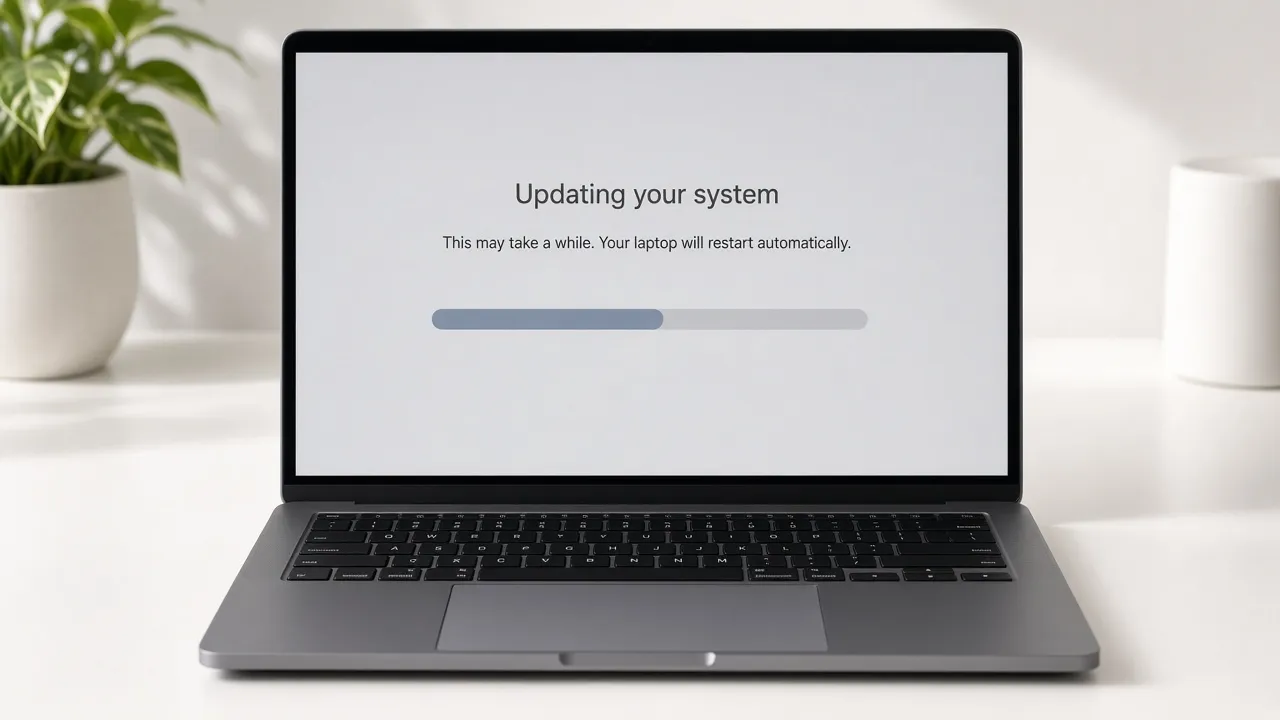
ChromeOS is designed around effortless background updates. When a Chromebook applies a major operating system update or enters recovery verification, it displays a distinct minimalist interface: a centered Google Chrome spinner against a calm grey or white backdrop, accompanied by a clean progress percentage.
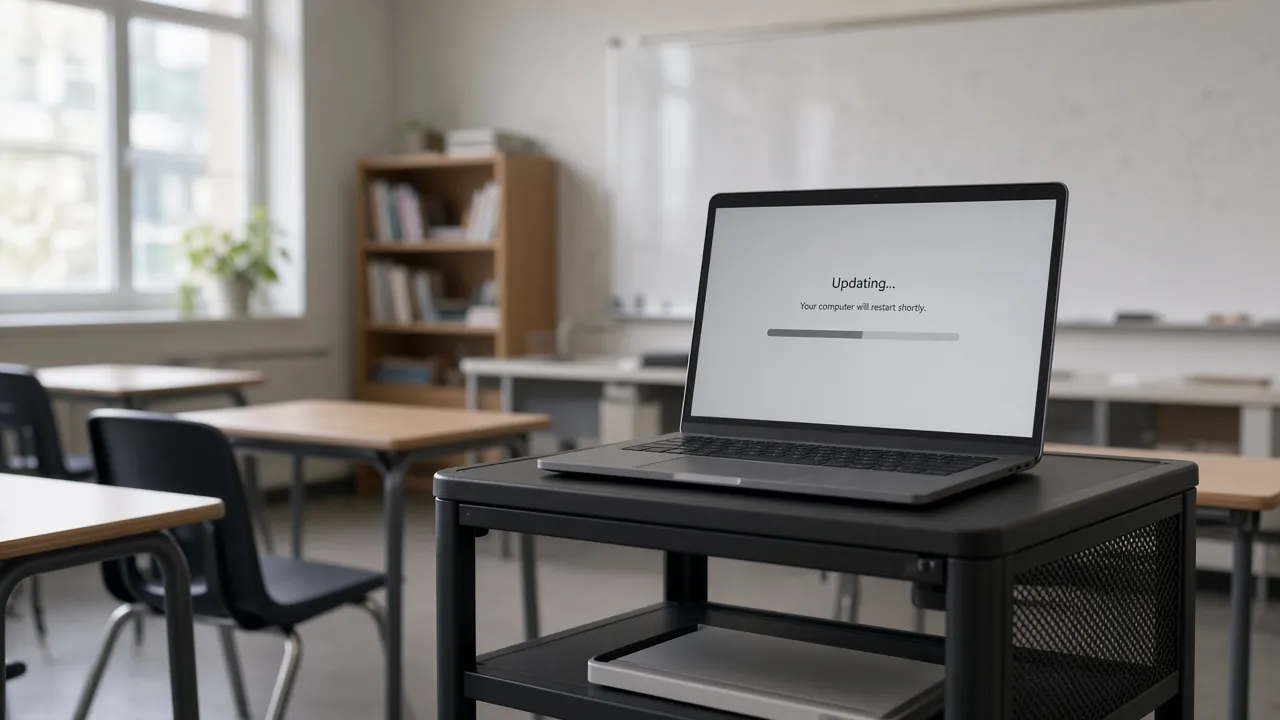
In educational environments and modern cloud-first enterprises, seeing a Chromebook in an update state is an indisputable reason why a student or remote employee cannot immediately access web apps or online coursework.
Our online simulator recreates this exact interface using official Google Material Design styling and smooth 60 FPS CSS animations. Scaled to native display resolution, it looks 100% authentic on any laptop, tablet, or monitor.
How to use it
How to use Fake ChromeOS Update Screen
Three simple steps. No install, no sign-up, no upload.
- 01
Open the ChromeOS update tool
Launch the simulator in any web browser on your PC, Mac, or Chromebook.
- 02
Press F for fullscreen
Tap F or click the preview to enter borderless full screen.
- 03
Enjoy your break
Step away while onlookers assume your Chromebook is undergoing a mandatory system update.
- 04
Press Esc to exit
Tap Esc when you are ready to resume working immediately.
Why this tool
Why choose Fake ChromeOS Update Screen
Engineered for distraction-free performance, privacy, and zero latency.
- 01
Perfect for Schools & Google Workspaces
The ideal believable prank screen for educational institutions and businesses heavily reliant on Chromebooks.
- 02
Screen Wake Lock Built In
Ensures your display remains awake without dimming or sleeping during presentations or filming.
- 03
Zero Software Downloads
Runs instantly in modern web browsers without installing extensions or executable files.
- 04
Hilarious on Mac & Windows
Run full screen on a high-end Windows gaming laptop or MacBook Pro to confuse colleagues.
Practical Use Cases
What people use Fake ChromeOS Update Screen for
Real-world scenarios with tested setup parameters and operational guidance.
Classroom & Study Break Excuse
Believably step away from your study desk or library workstation while onlookers assume your Chromebook is updating.
SetupFullscreen · Auto-Awake On · School DeskActionPress F before stepping away.NoteDo not use during timed exams or critical evaluations.Chromebook Video & Review Prop
Capture authentic b-roll of a Chromebook system update for tech reviews, cloud computing demos, and video sketches.
Setup1080p / 4K Camera RecordingActionFilm crisp close-ups of the rotating spinner.NoteAdjust studio lighting to prevent glare on glossy screens.Office Coworker Harmless Prank
Switch a coworker’s Chromebook to the update screen during lunch to give them a brief, harmless startle.
SetupFullscreen · Esc hotkey readyActionPress F on their unlocked browser window.NoteQuickly reveal the joke before they contact the school or office IT desk.Educational Cloud OS Demonstrations
Demonstrate Chromebook recovery and update UX behavior during digital literacy training workshops.
SetupClassroom Projector FullscreenActionExplain seamless cloud OS maintenance concepts.NoteClarify that this is an online educational mockup.
Pro tips
Tips & limits
Honest notes from real-world use. No fluff.
- Note
Press F to enter fullscreen instantly and remove the browser address bar and tabs.
- Note
Hide your mouse pointer by pushing it off the right edge of the screen.
- Note
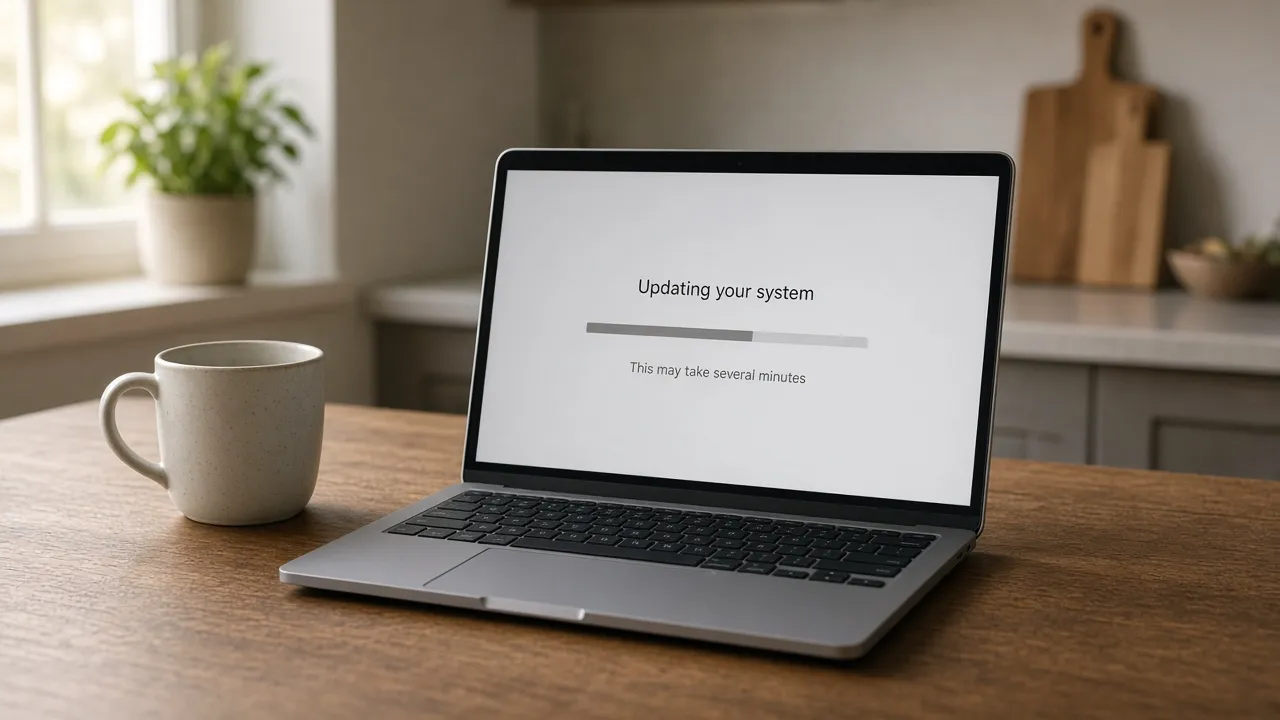
The progress bar advances slowly, mimicking real Google cloud package downloads.
- Note
Press Esc or tap the screen at any point to restore your normal desktop in under one second.
FAQ
Frequently asked questions
Straight answers about how Fake ChromeOS Update Screen works.
Will this tool install any real updates or restart my Chromebook?
No. This is purely a visual simulation running inside your web browser. It does not reboot your device or alter any operating system files.
How do I exit the fake ChromeOS update screen?
Press the Esc key on your keyboard or tap the top edge of your touchscreen device to immediately exit fullscreen.
Can I display this on a Windows PC or Mac?
Yes! It runs in any web browser, making it hilarious to show a Chromebook update running on an Apple MacBook or Windows PC.
Does the progress counter actually increase?
Yes, the percentage slowly advances in realistic increments, simulating an active ChromeOS software update.
Will my Chromebook screen go to sleep while this tool is running?
No. With Keep screen awake enabled, the Screen Wake Lock API prevents the screen from going into power-saving sleep.
Is this simulator completely free?
Yes, 100% free with no registration, no downloads, and no watermarks in fullscreen mode.
Can I open this on multiple external monitors?
Yes, click "Open in another window" in the display drawer to launch duplicate update screens across secondary displays.
What font does ChromeOS use for update screens?
Google uses the Roboto typeface family, designed for high legibility on digital screens across all resolutions.
Does it work offline without Wi-Fi?
Yes, once loaded, the page assets run locally in your browser cache without requiring an active internet connection.
Can I customize the update message?
The simulation displays the authentic canonical Google update wording for maximum real-world realism.
Ready when you are
Launch Fake ChromeOS Update Screen
Instant fullscreen mode in your browser — zero install, zero sign-up.
Go fullscreen