Fake Mac Update Screen
Loading mac update…
Key Features
Features of Fake Mac Update Screen
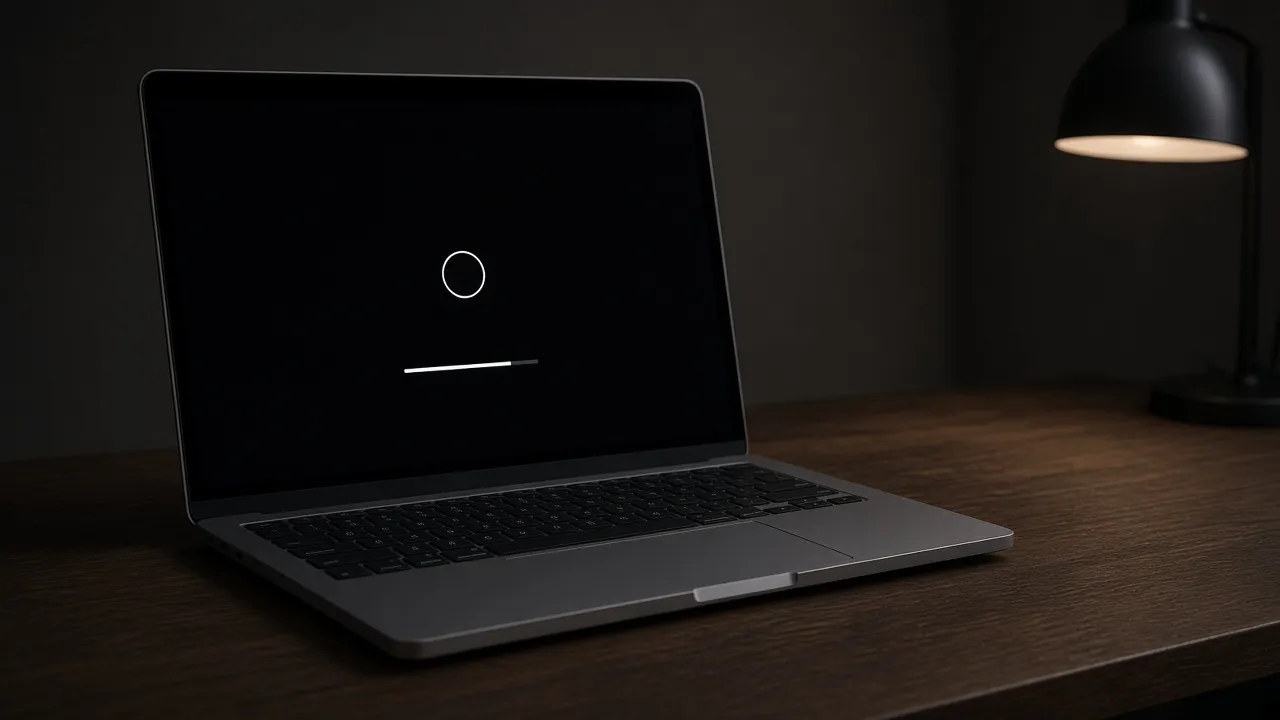
Minimalist Apple logo with progress bar on deep pitch black canvas.
- 01
Authentic Vector Apple Logo Geometry
Crafted with mathematically accurate Apple logo curvature, perfectly proportioned for modern 16:9 and 16:10 MacBook displays.
- 02
Subtle Apple Metallic Progress Bar
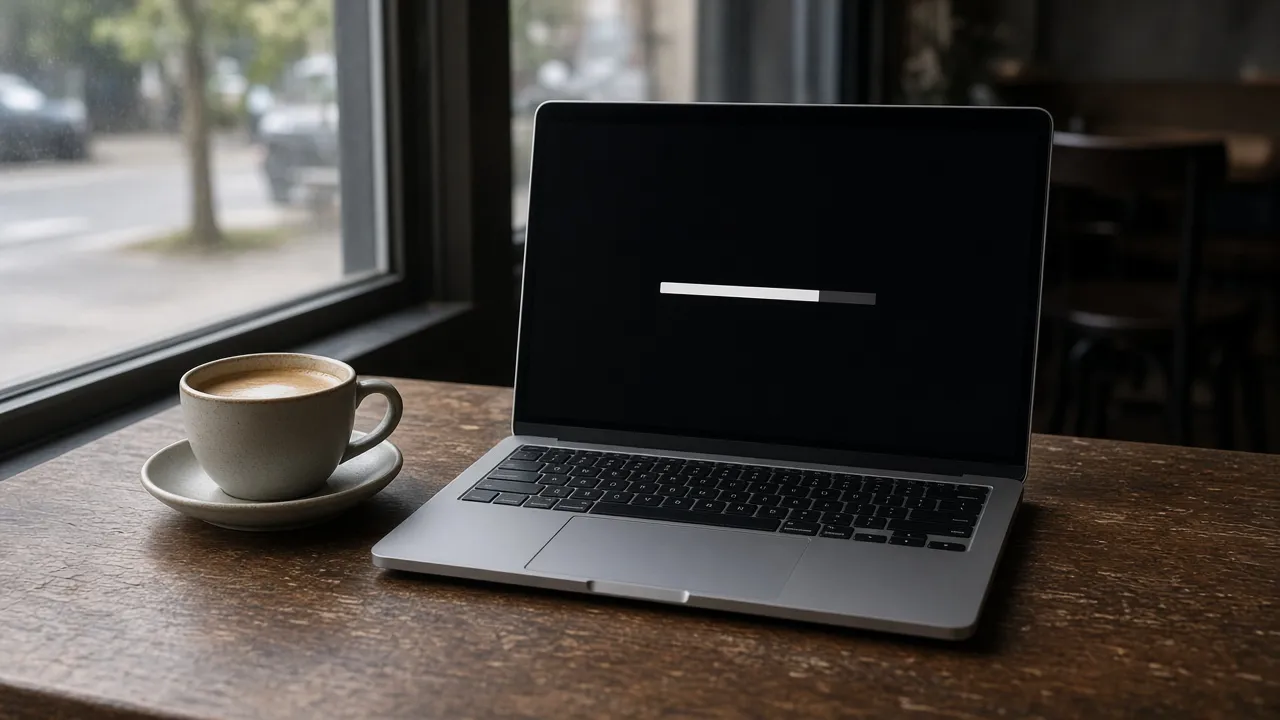
Recreates the thin, rounded progress bar and smooth fill animation characteristic of modern Apple silicon updates.
- 03
Realistic "Minutes Remaining" Estimator
Displays authentic macOS time estimates that slowly count down and pause realistically during the simulation.
- 04
Zero Light Bleed on OLED & Retina Panels
Pure black background (#000000) blends invisibly into black monitor bezels for total optical realism.
- 05
One-Click Instant Fullscreen
Press F to hide all browser tabs, the macOS menu bar, and the Dock for a completely convincing restart screen.
About & Principles
The Understated Simplicity of Apple macOS Update Screens
Unlike Windows with its verbose messages and spinning dot animations, Apple’s macOS update and boot interface is famously understated: a single centered white Apple logo and a subtle progress bar against a pitch-black (#000000) backdrop. Occasionally accompanied by "About X minutes remaining", it gives users zero technical details while installing gigabytes of system firmware.
Because macOS updates are mandatory for security, seeing this screen on a Mac laptop or desktop immediately tells colleagues that the device is completely occupied and cannot be touched.
Our online simulator provides a pixel-perfect rendition of this exact interface. Rendered in vector geometry with native Retina resolution support, it looks indistinguishable from an actual macOS Sonoma, Ventura, or Monterey firmware update.
How to use it
How to use Fake Mac Update Screen
Three simple steps. No install, no sign-up, no upload.
- 01
Open the Mac update tool
Launch the simulator in Safari or Chrome on your Mac or PC.
- 02
Press F for fullscreen
Tap F or click the preview to enter borderless full screen.
- 03
Enjoy your break
Step away while onlookers assume your Mac is installing a major macOS update.
- 04
Press Esc to exit
Tap Esc to dismiss the screen immediately and return to your desktop.
Why this tool
Why choose Fake Mac Update Screen
Engineered for distraction-free performance, privacy, and zero latency.
- 01
Tailored for Apple Workplaces
The ideal believable prank screen for creative agencies, design studios, and software companies running MacBook fleets.
- 02
Retina-Calibrated Crispness
Vector rendering ensures zero pixelation on 4K, 5K Studio Displays, and Pro Display XDR screens.
- 03
Screen Wake Lock Built In
Prevents display sleep so your Mac update screen remains illuminated indefinitely.
- 04
Hilarious on Windows PCs
Run full screen on a Dell or ThinkPad to convince coworkers you somehow installed macOS on PC hardware.
Practical Use Cases
What people use Fake Mac Update Screen for
Real-world scenarios with tested setup parameters and operational guidance.
Creative Studio & Agency Break Shield
Keep clients and coworkers from interrupting your focus or coffee break by leaving your MacBook visibly updating.
SetupFullscreen · Auto-Awake EnabledActionPress F before stepping away from your desk.NoteUse responsibly during collaborative design sprints.Mac-themed Film & YouTube Production
Capture realistic Apple system update footage without actually updating your production machines or risking downtime.
Setup4K Display · Studio LightingActionShoot over-the-shoulder video of the progress bar.NoteClean monitor glass to avoid visible dust spots on black.Harmless Tech Pranks
Put a friend’s MacBook into full-screen update mode right before lunch to watch them groan about Apple’s slow update times.
SetupFullscreen · Esc hotkey memorizedActionPress F on their unlocked browser window.NoteDismiss immediately if they panic about unsaved files.Dark Room Ambient Screen
Use the deep black canvas and minimal Apple logo as a low-light ambient screen saver for dark bedrooms or editing suites.
SetupLow Screen Brightness · FullscreenActionLeave running on secondary display.NoteLower brightness to avoid glowing logo distraction.
Pro tips
Tips & limits
Honest notes from real-world use. No fluff.
- Note
Press F to enter fullscreen mode and hide both the top menu bar and the bottom Dock.
- Note
Hide your mouse pointer by pushing it off-screen to the right side.
- Note
The progress bar moves slowly, mimicking Apple’s real firmware installation speed.
- Note
Press Esc or tap the screen at any time to return immediately to your active applications.
FAQ
Frequently asked questions
Straight answers about how Fake Mac Update Screen works.
Will this tool install any real updates or restart my Mac?
No. This is purely a visual simulation running inside your web browser. It does not reboot your Mac, install firmware, or touch any files.
How do I exit the fake Mac update screen?
Press the Esc key on your keyboard or tap the top edge of your screen on touchscreen devices to immediately exit fullscreen.
Can I display this on a Windows PC or Chromebook?
Yes! It runs in any web browser, making it hilarious to display an Apple macOS boot update on a Windows ThinkPad or Dell laptop.
Does the progress bar actually advance?
Yes, the progress bar slowly fills across the screen, making the update look genuinely active to passing observers.
Will my Mac screen go to sleep while this tool is running?
No. With Keep screen awake enabled, the Screen Wake Lock API prevents macOS from putting the display to sleep.
Is this simulator completely free?
Yes, 100% free with no downloads, no registration, and no advertisements during fullscreen mode.
Can I open this on multiple Apple Studio Displays?
Yes, open the settings drawer and click "Open in another window" to mirror the update screen onto external monitors.
Why is the background pure black?
Apple uses pitch black (#000000) for all system boots and firmware updates on Apple Silicon and modern Intel Macs.
Does it work offline without Wi-Fi?
Yes, once loaded, the page assets run locally in your browser cache without needing an active internet connection.
How long does the simulation run?
The simulation runs continuously in an ultra-slow realistic loop until you press Esc to exit.
Ready when you are
Launch Fake Mac Update Screen
Instant fullscreen mode in your browser — zero install, zero sign-up.
Go fullscreen