Fake Ubuntu 22.04 Update Screen
Loading ubuntu update…
Key Features
Features of Fake Ubuntu 22.04 Update Screen
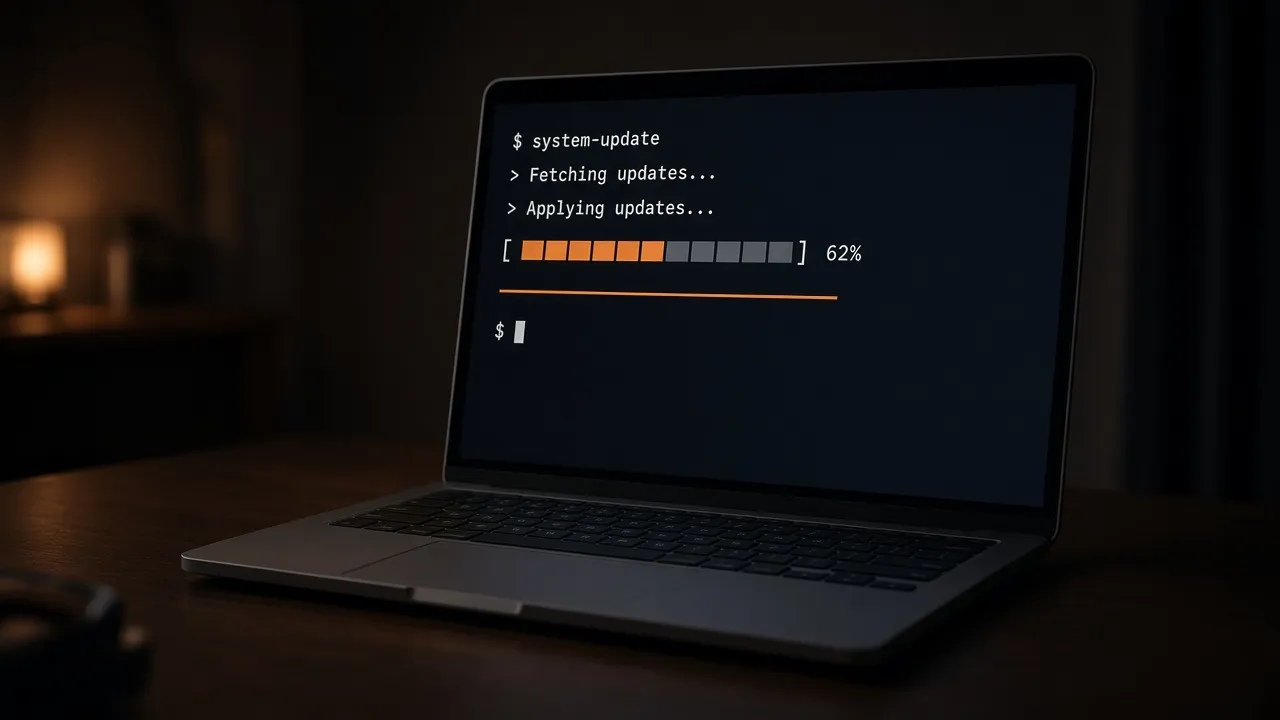
Realistic Ubuntu Linux kernel upgrade terminal and Plymouth loading screen.
- 01
Authentic Linux Terminal Logs
Streams genuine Ubuntu apt-get, dpkg, and systemd upgrade logs with authentic timestamps and package names.
- 02
Signature Ubuntu Aubergine Palette
Faithfully matches the official Canonical Ubuntu brand colors (#77216F, #5E2750, #E95420) and Plymouth theme.
- 03
Dual Mode: GUI Spinner & CLI Terminal
Toggle between the clean graphical desktop boot spinner and the high-density terminal log stream.
- 04
Instant Fullscreen Mode
Press F to hide all browser tabs and OS bars, leaving an authentic full-screen Linux workstation.
- 05
100% Safe Browser Execution
Runs in client-side memory. No actual packages are installed, and pressing Esc restores your normal desktop instantly.
About & Principles
The Technical Authenticity of Ubuntu System Upgrades
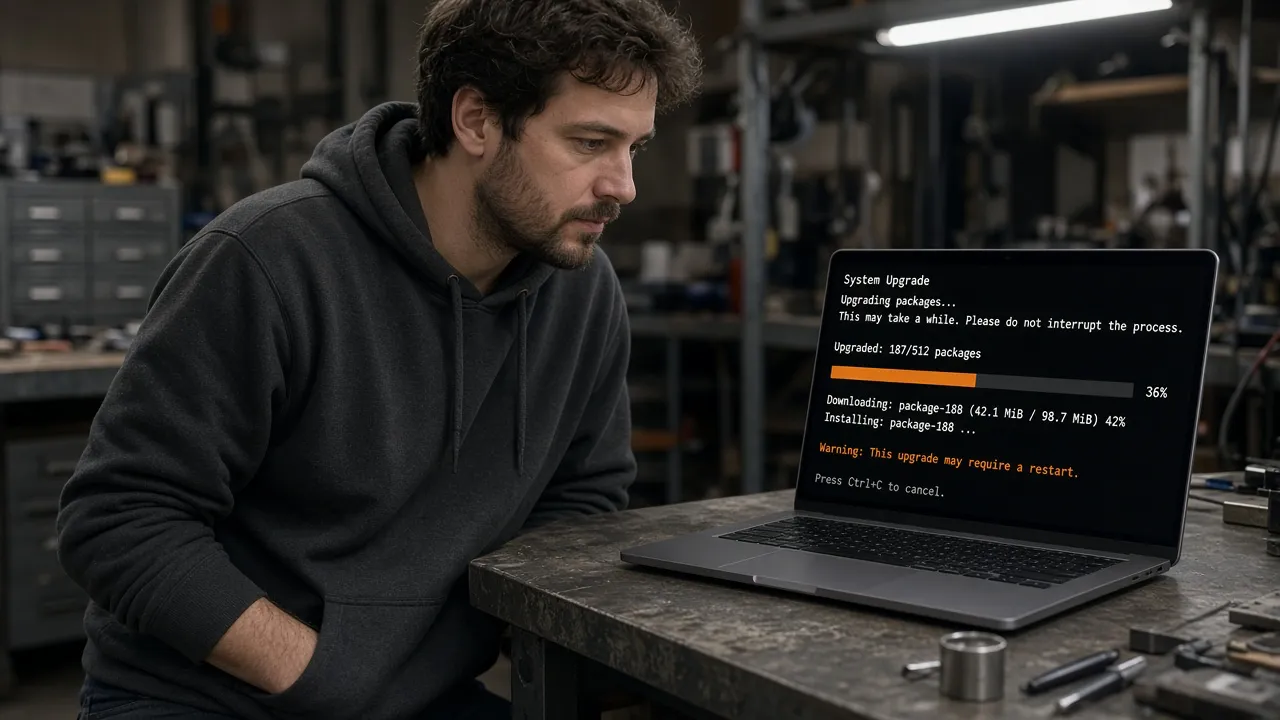
For software engineers, DevOps professionals, and Linux administrators, an Ubuntu distribution upgrade (`do-release-upgrade` or `apt-get dist-upgrade`) is a sacred, uninterrupted process. Scrolling through thousands of lines of package unpacking, symlink configuration, and kernel DKMS recompilation, it signals to everyone in the office that complex infrastructure work is underway.
Our online simulation provides two authentic visual modes: the scrolling technical terminal mode displaying genuine Debian/Ubuntu package managers, and the graphical Plymouth boot upgrade screen featuring the official Ubuntu logo and spinner against the signature aubergine gradient (#77216F to #2C001E).
Built with authentic monospace Linux console fonts and fluid CSS animations, it provides an impenetrable shield of technical legitimacy on any desktop workstation.
How to use it
How to use Fake Ubuntu 22.04 Update Screen
Three simple steps. No install, no sign-up, no upload.
- 01
Open the Ubuntu update tool
Launch the simulator in any web browser on your PC or Mac.
- 02
Press F for fullscreen
Hit F or click the preview to enter borderless full screen.
- 03
Observe the Linux terminal stream
Watch authentic package logs stream down the screen, establishing total technical credibility.
- 04
Press Esc to exit
Hit Esc at any time to return immediately to your real desktop.
Why this tool
Why choose Fake Ubuntu 22.04 Update Screen
Engineered for distraction-free performance, privacy, and zero latency.
- 01
Unrivaled Sysadmin Credibility
Colleagues will assume you are compiling a custom kernel or running a mission-critical server migration.
- 02
Screen Wake Lock Built In
Ensures your monitor stays awake throughout presentations, breaks, and video filming sessions.
- 03
Zero Risk of System Breakage
Unlike a real `dist-upgrade`, this simulation will never break your display drivers or corrupt GRUB configs.
- 04
Hilarious on Windows Laptops
Run full screen on a corporate Windows laptop to make coworkers wonder how you installed Ubuntu on IT-managed machines.
Practical Use Cases
What people use Fake Ubuntu 22.04 Update Screen for
Real-world scenarios with tested setup parameters and operational guidance.
DevOps & Sysadmin Focus Shield
Leave running on your workstation during deep coding sessions or breaks so people respect your technical focus.
SetupFullscreen · Terminal Mode · Dark RoomActionPress F before stepping away from desk.NoteEnsure team members know you are reachable on Slack if urgent.Tech YouTube & Coding B-Roll
Capture authentic Linux package compilation and terminal upgrade footage for programming tutorials and documentary films.
Setup1080p / 4K OBS RecordingActionRecord crisp terminal text scrolling.NoteMatch text font size to camera resolution.Computer Science Classroom Demonstration
Showcase Debian package management concepts and Linux system upgrade mechanics to students in a safe visual environment.
SetupClassroom Projector FullscreenActionWalk through dpkg unpack, triggers, and post-install steps.NoteClarify that this is a simulated representation.Server Room Ambient Display
Use on auxiliary monitors in server closets or home labs to create an authentic Unix datacenter ambience.
SetupFullscreen · Auto-Awake EnabledActionLeave running on rack-mount display.NoteLower brightness to maintain low ambient heat.
Pro tips
Tips & limits
Honest notes from real-world use. No fluff.
- Note
Press F to enter fullscreen mode and hide all browser elements.
- Note
The terminal logs scroll naturally, mimicking real network package downloads and disk write speeds.
- Note
Hide your mouse cursor by moving it off the right edge of the screen.
- Note
Press Esc or tap the screen at any time to restore your normal desktop in a fraction of a second.
FAQ
Frequently asked questions
Straight answers about how Fake Ubuntu 22.04 Update Screen works.
Will this tool install any real Linux packages on my computer?
No. This is purely a web-based visual simulation running in your browser sandbox. It does not touch your disk, install software, or change system settings.
How do I exit the Ubuntu update screen?
Press the Esc key on your keyboard or tap the top edge of your touchscreen device to immediately exit fullscreen.
Can I run this on a Windows PC or Mac?
Yes! It runs in any web browser, making it especially amusing to show Ubuntu Linux updating on a Windows surface or MacBook.
Are the package names displayed real?
Yes. The terminal logs feature genuine package names and commands from the official Ubuntu 22.04 LTS (Jammy Jellyfish) repositories.
Will my display turn off while the update is running?
No. With Keep screen awake enabled, the Screen Wake Lock API prevents your monitor from going into power-saving sleep.
Is this simulator completely free to use?
Yes, 100% free with no registration, no downloads, and no watermarks in fullscreen mode.
Can I open this on multiple monitors simultaneously?
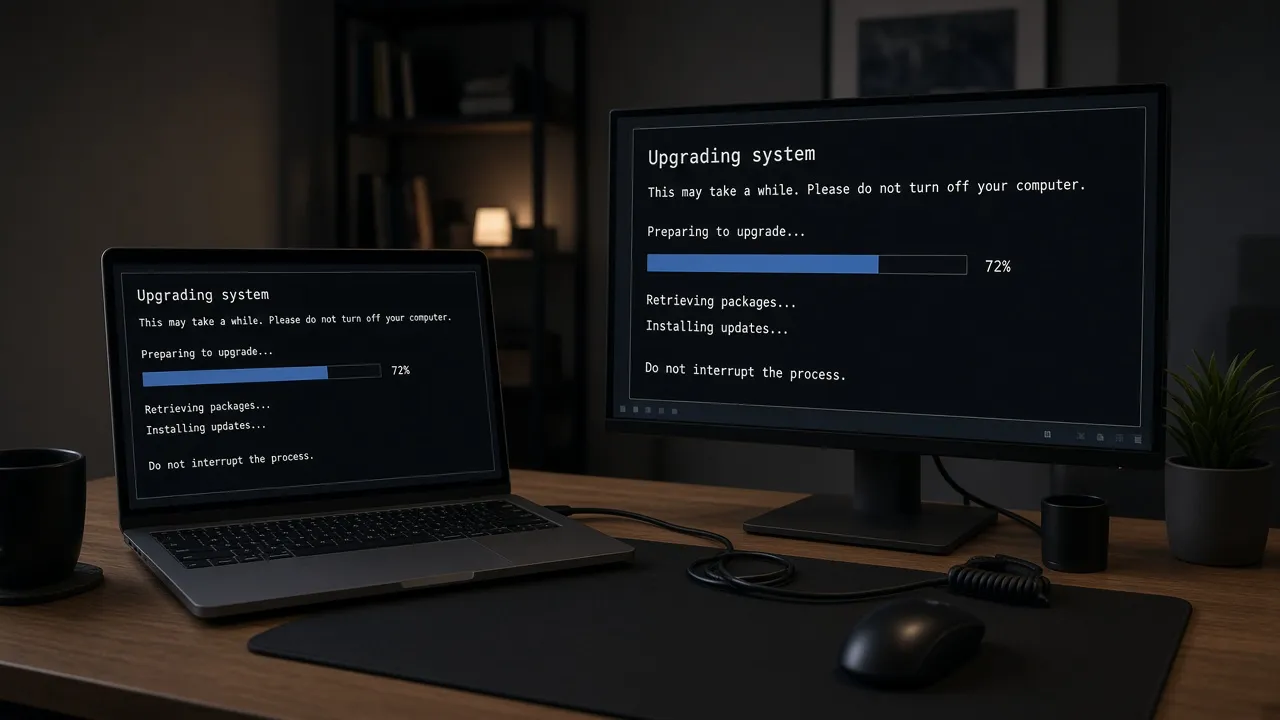
Yes, click "Open in another window" in the display settings to launch duplicate update screens across all external monitors.
What version of Ubuntu does this simulate?
It simulates Ubuntu 22.04 LTS (Jammy Jellyfish), featuring both the graphical Plymouth bootloader and the terminal apt interface.
Does this page work offline?
Yes. Once loaded, all assets and scripts are cached locally, allowing the simulation to run without an active internet connection.
Can I customize the terminal text speed?
The scroll velocity is automatically timed to simulate realistic package extraction and drive write latency.
Ready when you are
Launch Fake Ubuntu 22.04 Update Screen
Instant fullscreen mode in your browser — zero install, zero sign-up.
Go fullscreen