Fake Android Update Screen
Loading android update…
Key Features
Features of Fake Android Update Screen
Authentic Android system update and recovery mode with progress bar.
- 01
Authentic Green Android Mascot Vector
Crisp vector rendering of the official Android mascot with animated spinning stomach gears or glowing chest pulses.
- 02
Portrait & Landscape Adaptive Layout
Automatically adjusts to phone screens, tablets, and desktop monitors with native responsive aspect ratios.
- 03
Realistic Progress Bar & Text Output
Features authentic "Installing system update" and "Optimizing apps" subtexts with a slowly advancing progress bar.
- 04
One-Touch True Fullscreen
Press F or tap the screen to hide mobile browser URL bars and system navigation buttons for total immersion.
- 05
100% Safe Browser Execution
Runs entirely in browser memory. No device firmware is altered, and pressing Esc or tapping restores normal operation instantly.
About & Principles
The Iconic Green Robot Android Update Experience
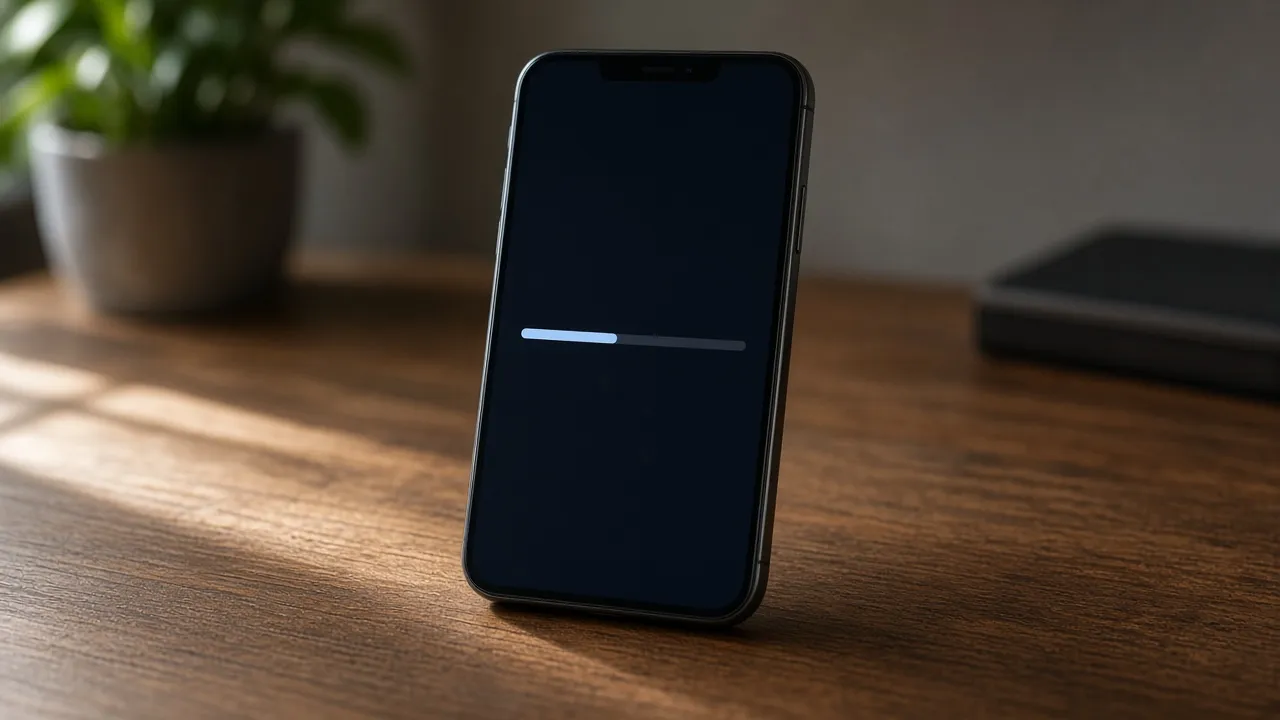
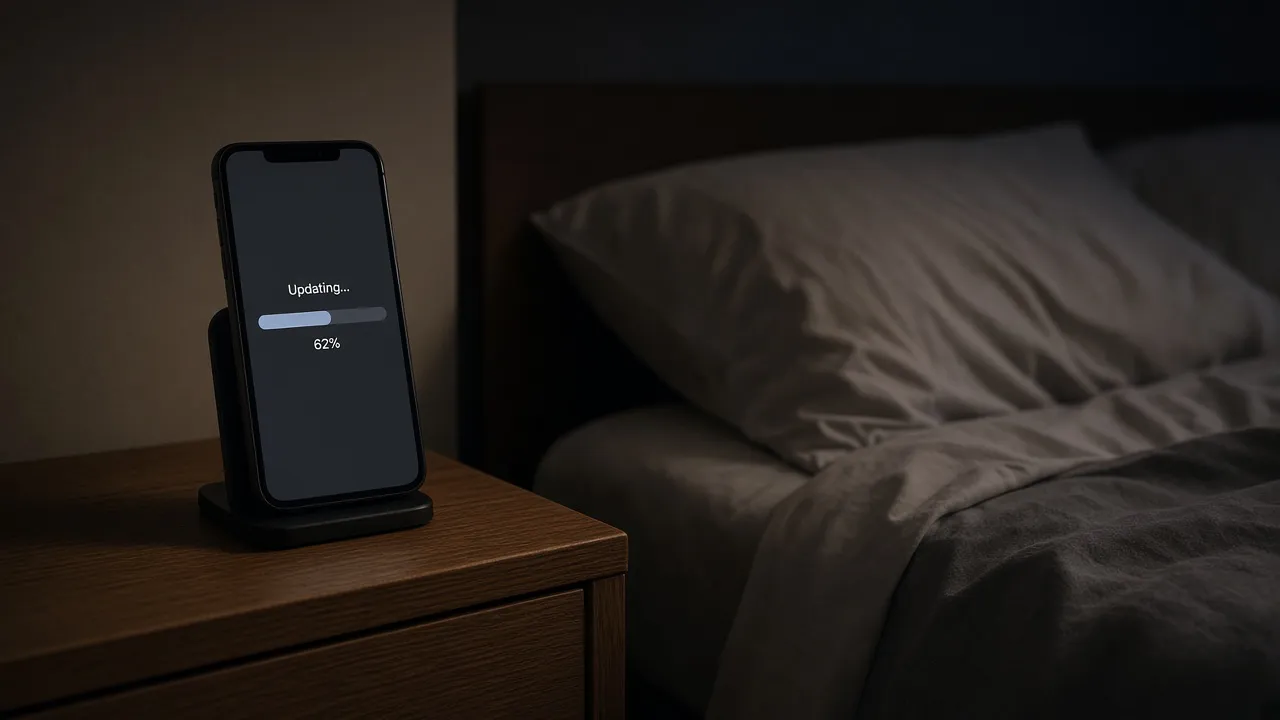
Whenever an Android smartphone or tablet installs an over-the-air (OTA) operating system upgrade or enters recovery mode, it displays the famous green Android robot mascot alongside a progress bar and the message "Installing system update...". During this phase, the device cannot accept touch input, phone calls, or app launches.
Our online simulator recreates this exact mobile recovery experience with authentic vector graphics and smooth animations. Scaled to portrait or landscape orientations, it fits smartphone screens, tablets, and full-size desktop monitors alike.
With dark OLED-friendly background contrast and realistic progress ticks, it provides an airtight illusion that an Android device is undergoing a major firmware flash.
How to use it
How to use Fake Android Update Screen
Three simple steps. No install, no sign-up, no upload.
- 01
Open the Android update tool
Launch the simulator in Chrome or Safari on your phone, tablet, or PC.
- 02
Tap for fullscreen mode
Tap the screen or press F to hide all browser chrome and navigation bars.
- 03
Place device and observe
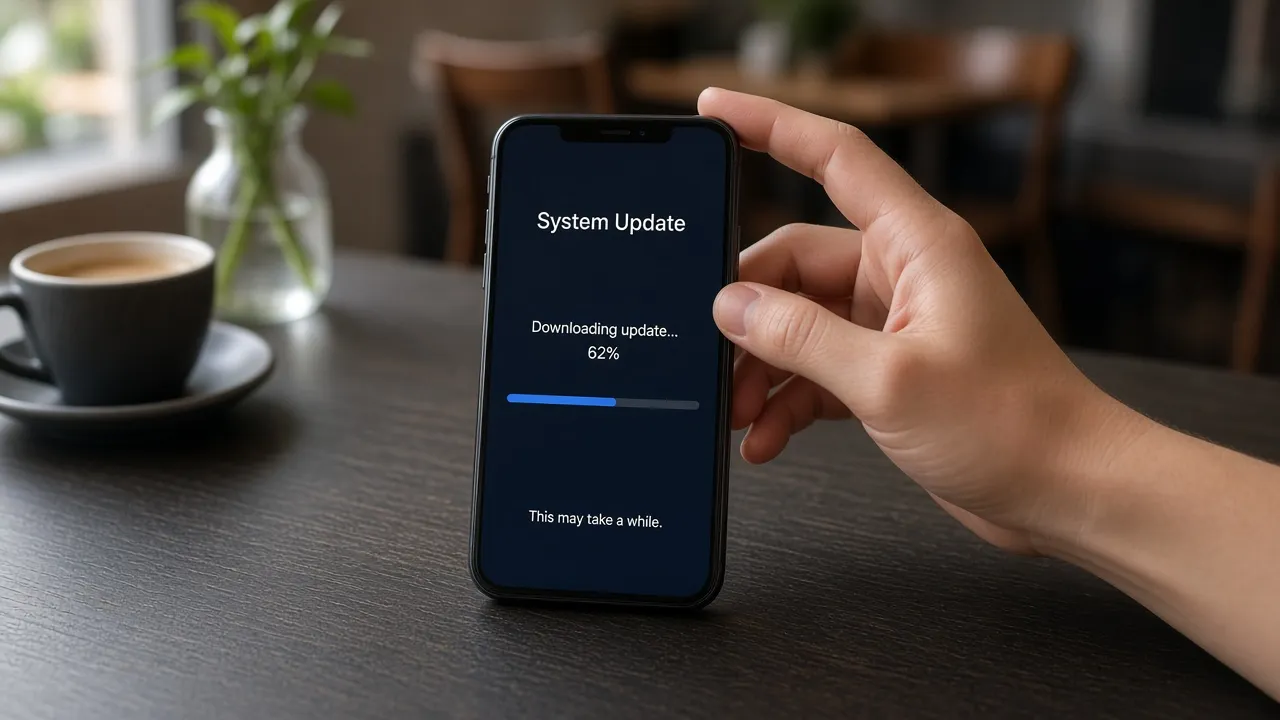
Leave your phone on the desk while friends assume your device is locked in an OTA firmware update.
- 04
Exit with Esc or double-tap
Press Esc or double-tap the top edge to immediately dismiss the update screen.
Why this tool
Why choose Fake Android Update Screen
Engineered for distraction-free performance, privacy, and zero latency.
- 01
Mobile & Tablet Optimized
The only major update simulator specifically designed for portrait mobile phones and iPad/Android tablets.
- 02
Pure OLED Pitch Black Background
Deep black (#000000) canvas saves battery on AMOLED mobile displays and blends invisibly with device bezels.
- 03
Screen Wake Lock Built In
Prevents mobile screens from timing out and locking while waiting for someone to notice the update.
- 04
Zero App Installation
No dangerous APK files or sketchy Play Store apps needed. Runs 100% securely inside your browser.
Practical Use Cases
What people use Fake Android Update Screen for
Real-world scenarios with tested setup parameters and operational guidance.
Mobile Phone Harmless Prank
Open full screen on a friend’s Android phone or tablet while they grab coffee so they think their device auto-restarted.
SetupPortrait Mode · Fullscreen · OLED BlackActionLaunch full screen and place phone face-up on table.NoteQuickly show them how to exit before they worry about losing photos.Mobile Video & Sketch Prop
Show an actor holding a smartphone that is visibly updating its operating system during technology sketches or films.
SetupSmartphone in Hand · Studio LightingActionCapture close-up video of the glowing green robot.NoteLock screen orientation to prevent unwanted rotation.Excuse to Avoid Unwanted Calls
Need a believable visual excuse for why you cannot take a call or reply to texts right now? An active system update provides instant credibility.
SetupPhone on Desk · High Screen BrightnessActionShow screen to indicate phone is currently flashing firmware.NoteUse responsibly for non-emergency situations.Mobile Retail & Repair Demos
Demonstrate Android recovery mode and firmware installation concepts during smartphone repair training sessions.
SetupTablet / Monitor FullscreenActionExplain recovery partition and OTA update procedures.NoteClarify that this is an educational web mockup.
Pro tips
Tips & limits
Honest notes from real-world use. No fluff.
- Note
Lock your phone orientation in portrait mode for the most authentic smartphone appearance.
- Note
Tap anywhere to go full screen and conceal browser address bars on mobile devices.
- Note
The green robot and progress bar move slowly, mimicking authentic Google OTA package verification.
- Note
Double-tap the top edge or press Esc on desktop keyboards to exit back to your phone home screen immediately.
FAQ
Frequently asked questions
Straight answers about how Fake Android Update Screen works.
Will this tool install any real firmware or brick my phone?
No. This is purely an in-browser visual simulation. It does not access your phone storage, modify system partitions, or risk bricking your device in any way.
How do I exit the fake Android update screen on a mobile phone?
Double-tap near the top edge of your screen, swipe up from the bottom to reveal the home bar, or press your phone back button to exit.
Can I display this on an iPhone or iPad?
Yes! It runs in mobile Safari on iOS, making it hilarious to display an Android system update on an Apple iPhone.
Does the progress bar really move?
Yes, the progress bar slowly advances to simulate active package verification and app optimization.
Will my phone screen turn off while this page is open?
No. With Keep screen awake enabled, the Screen Wake Lock API keeps your mobile display on continuously.
Is this simulator completely free to use?
Yes, 100% free with no registration, no app downloads, and no watermarks in fullscreen mode.
Can I run this on a desktop computer or laptop?
Yes, it works on desktop monitors as well, displaying an authentic Android tablet update experience.
Why does Android show a green robot during updates?
The green robot mascot (Bugdroid) has been the official Android emblem since version 1.0, traditionally appearing during system recoveries.
Does it work offline without mobile data?
Yes. Once loaded in your mobile browser, the page runs locally without requiring an active cellular or Wi-Fi connection.
Can I adjust the screen orientation?
The layout automatically responds to portrait and landscape orientations as you rotate your mobile device.
Ready when you are
Launch Fake Android Update Screen
Instant fullscreen mode in your browser — zero install, zero sign-up.
Go fullscreen